
Quick answer: To add an AI chatbot to your website, train it on your own pages and documents, customize the chat widget to match your brand, then paste one script tag with your Widget key into your site's HTML. The chatbot then answers visitor questions and captures leads for you, day and night.
Someone lands on your site at 9 p.m. with a question. Your prices, your hours, whether you ship to their city. Nobody's there to answer, so they close the tab and try the next result.
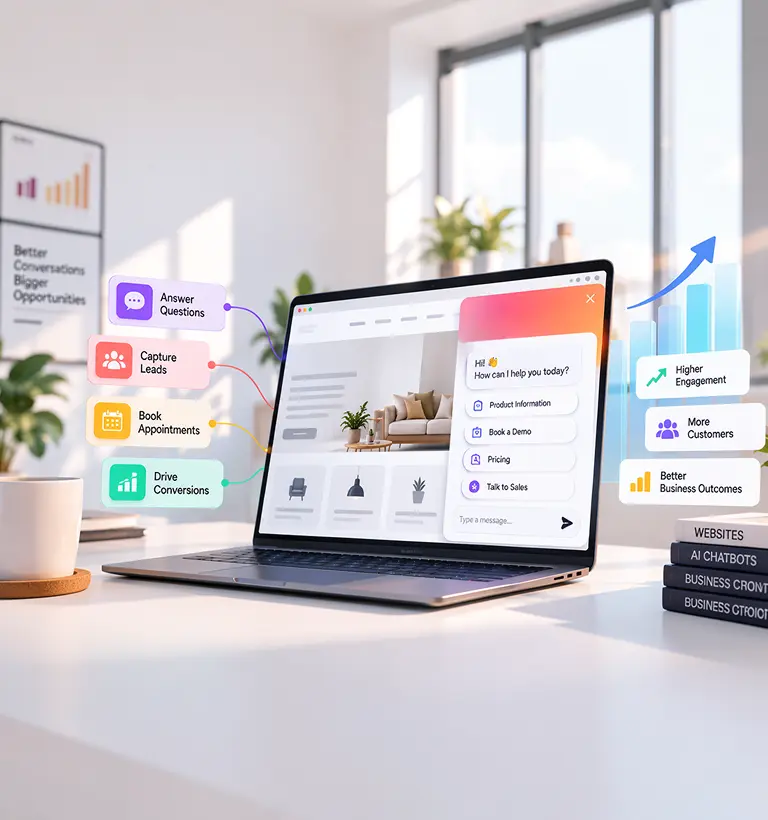
An AI chatbot fixes that gap. It answers in seconds, around the clock, and it can collect a lead while the visitor is still interested. Below is exactly how to add one to your website, with no developer and no complicated build.
What an AI website chatbot actually is
An AI chatbot is a chat window that sits on your site and answers questions in plain language. It doesn't reply from a fixed menu of buttons. It pulls answers from content you give it.
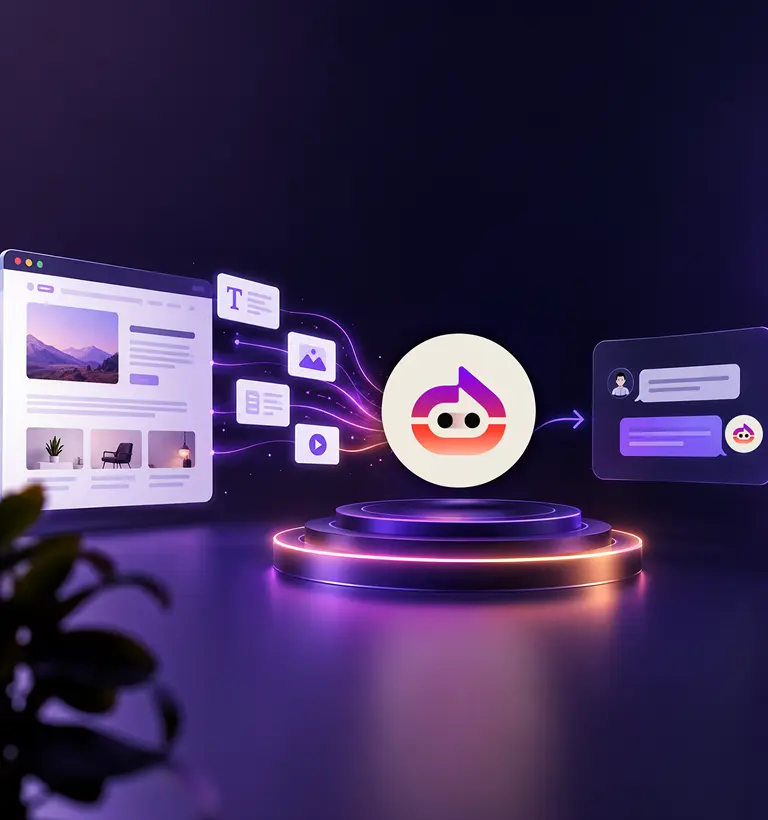
With Witzo, that content is your own website URLs and uploaded files. So the replies match your real prices, policies, and products instead of a generic guess.
You don't write code for it. You train it, style it, and place it on your site.
Why a website chatbot is worth it
Most visitors arrive with a question, and speed decides what happens next. If they wait hours for an email reply, many won't come back.
A chatbot answers right away. It clears the repeat questions your team fields every week, so people get help without sitting in a queue.
There's a second payoff. The chat can collect a name and email while interest is high, so a quiet browser turns into a lead you can reach later. Think about the questions you answer over and over. Those are the ones a trained chatbot handles first.
How to add a chatbot to your website in 3 steps
Witzo splits setup into three parts: Train, Customize, and Embed. You can finish all three in one sitting.
Step 1: Train your chatbot
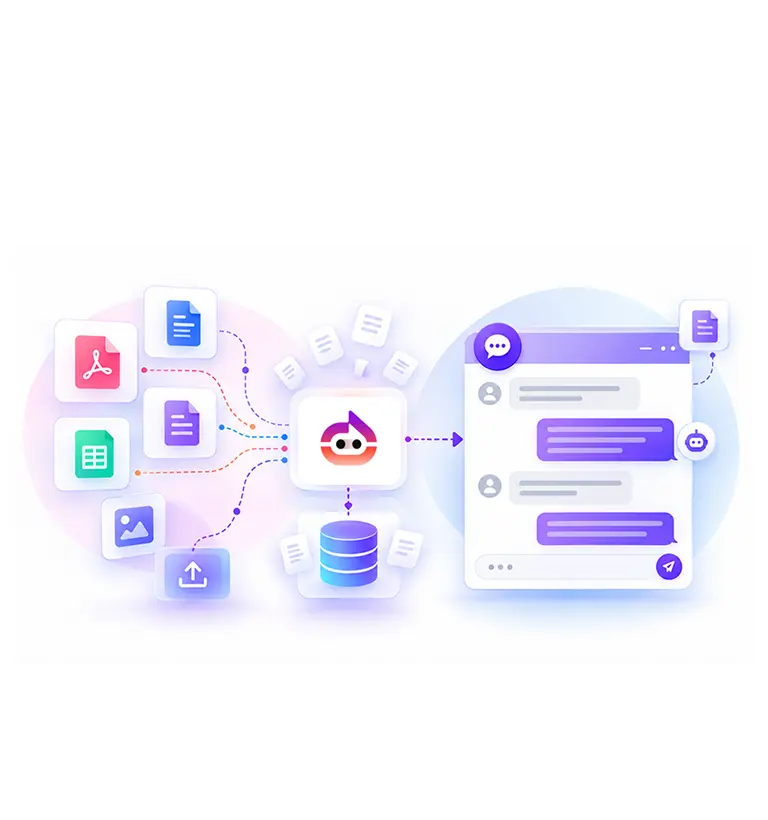
Tell the chatbot what it should know. In the Data Sources section, add your website URLs and upload the documents you want it to read.
Witzo accepts these formats: PDF, DOC, DOCX, CSV, XLS, XLSX, and TXT.
This is where your chatbot learns your business. A services list, a price sheet, a returns policy, an FAQ document — each file gives it more to answer from. Add the pages people ask about most, and the quality of your answers climbs.
Step 2: Customize the widget
Open Widget Customization to set how the chat window looks. Match your colors and brand so the widget feels like part of your page instead of something bolted on. A widget that fits your design gets more clicks than one that looks out of place.
Step 3: Embed it on your site
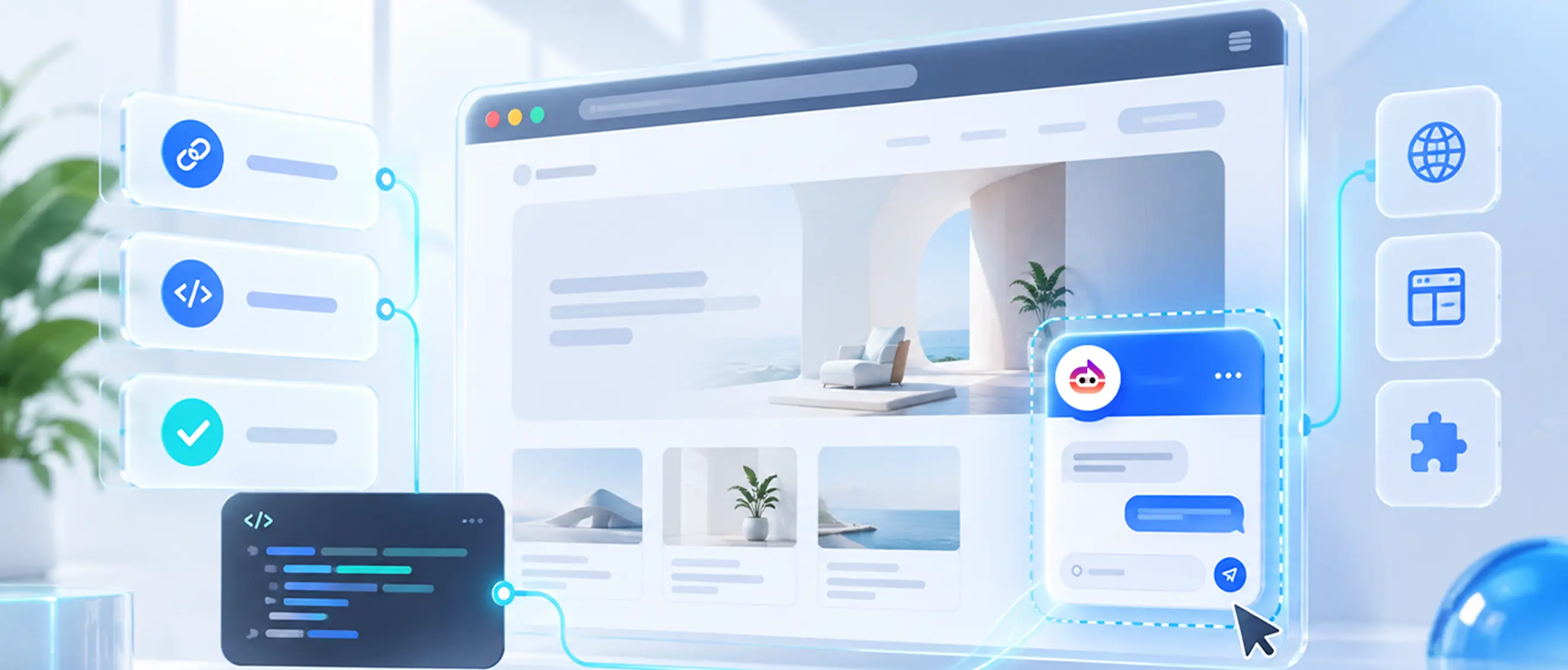
Copy your Widget key and paste one script tag into your site's HTML. That single line puts the live chat widget on your pages.
It works on most website builders that let you add custom code, so you usually skip the developer for this part.
Start your free chatbot on Witzo and watch it answer real visitor questions on your own site.
Who should add one
This setup fits small businesses, online stores, service providers, agencies, and marketing teams. If your site draws questions you answer again and again, a chatbot can take the first pass.
It suits a one-person shop that can't watch the inbox all day. It also suits a support team that wants fewer repeat tickets and more time for the hard cases.
The everyday problems it solves
A trained chatbot chips away at a few common headaches:
- Slow replies. Visitors get an answer in seconds instead of waiting hours.
- Missed leads. The chat collects contact details while interest is high, so fewer people slip away.
- Repeat questions. Common questions get handled on the spot, which frees your team for the tricky ones.
- After-hours gaps. The chat keeps working when your office is closed.
Small wins on their own. Together they change how fast people get help on your site.
What makes Witzo different
Witzo trains on your material, not on generic web data. You feed it your pages and files, so the answers come from your business rather than a guess.
You also get more than a chat box. The dashboard tracks Conversations, captures Leads, shows Analytics, and collects Feedback through visitor chat ratings. You can see what people ask, which answers landed, and how helpful visitors found them.
Some features depend on your plan. A Fallback Lead Form and an Auto Follow-up Email are plan-gated. Plan Restriction: Check the pricing page for your plan. CRM integrations such as HubSpot, Zoho, Salesforce, and SAP ERP are Enterprise features. Plan Restriction: Available on Enterprise.
Why training on your own content matters
A chatbot is only as good as what it reads. If it has to guess, it gives wrong answers, and a wrong answer costs you trust.
Train it on your own URLs and documents, and it replies from your actual prices, policies, and product details. Upload a fresh price sheet or a new help doc, and it has current material to pull from the next time someone asks. That's the line between a chat that sounds confident and one that's actually right.
Examples you'll recognize
A dental clinic uploads its services PDF. The chat answers questions about treatments and opening hours, then collects contact details from people who want to book.
An online store adds its shipping and returns pages. A shopper asks, "Do you ship to Canada?" and gets an answer in the chat instead of emailing and waiting.
A software team uploads its help docs. The chat handles common setup questions, and the team spots recurring issues in Analytics, which shows them what to fix or document next.
A few honest limits
A chatbot answers from what you give it. If your content is thin or out of date, the replies will be too, so keep your sources current.
It won't replace your whole team either. It covers common questions well, but complex or sensitive cases still need a person. Set that expectation with visitors so the chat hands off when it should.
If privacy or compliance matters for your use, remember that compliance also depends on your legal, operational, and business processes, not the product alone.
Get your chatbot live today
Adding an AI chatbot used to mean a developer and a long build. Now it's three steps you can finish today: train it on your content, style the widget, and paste one script tag. From there it answers questions and gathers leads while you get on with the rest of your work.
Start your free chatbot on Witzo, then check the pricing page when you're ready for more features.