Preview and Test Before Going Live
Preview and test your widget to ensure its appearance and functionality are correct before going live.
Dashboard Preview
The Widget Customization panel includes a built-in preview area that reflects your changes in real time.
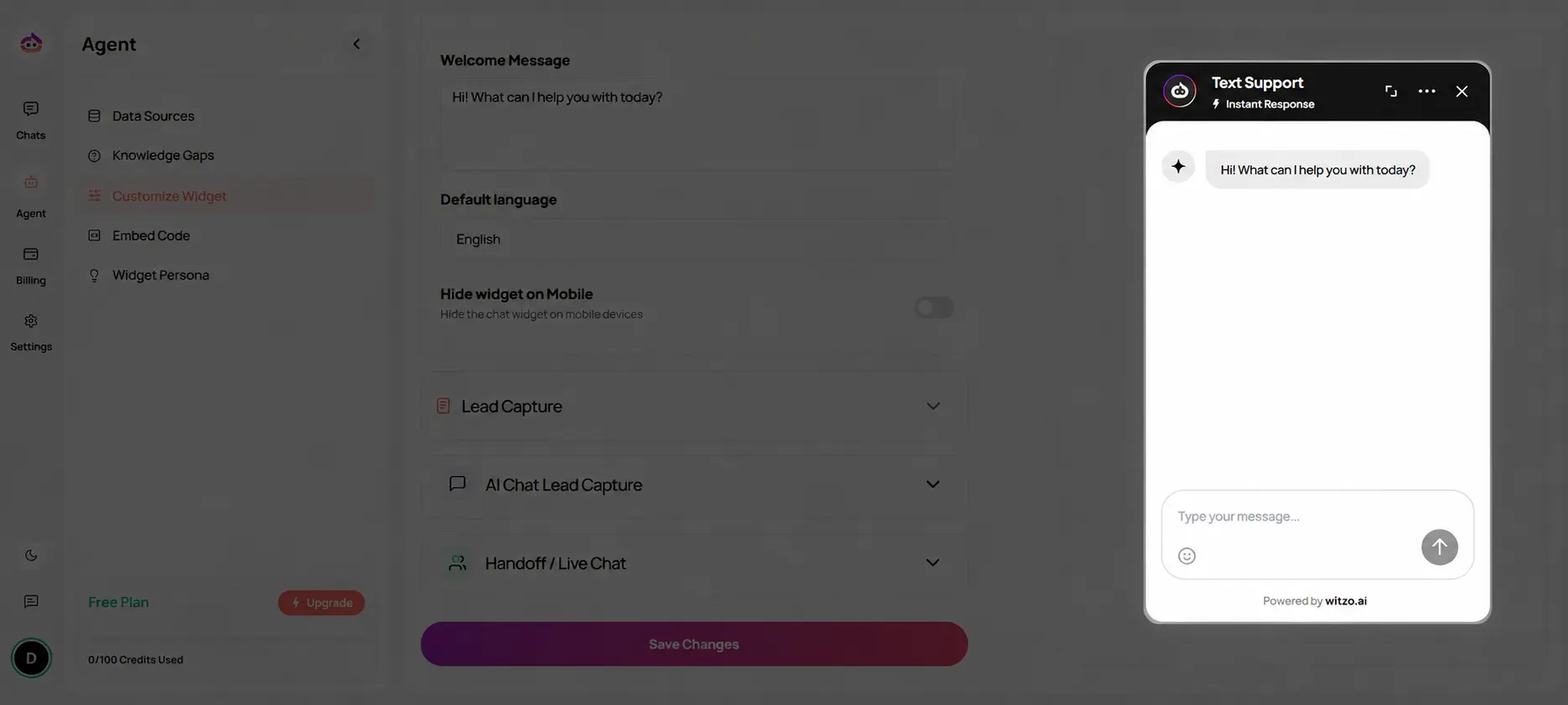
What to Verify in the Preview
Use the built-in preview to confirm each of the following before saving:
- Colors - Confirm the primary color matches your brand palette on both light and dark backgrounds.
- Assistant Name - Verify the name shown in the widget header is correct and matches your brand voice.
- Logo Display - Check that the logo renders clearly and is not cropped or distorted in the widget header.
- Welcome Message - Ensure the greeting text is short, friendly, and displays correctly without truncation.
Mobile Testing
Test your widget on a real mobile device after embedding the script on a staging page.
Mobile steps:
- Install the embed script on a staging page.
- Open the page on a mobile device.
- Test tap behavior and screen spacing.
- Send a sample message.
- Check for layout overlap or scrolling issues.
Desktop checks:
- Verify the widget does not block important page elements.
- Test left and right position options.
- Confirm widget opens and closes smoothly.
- Send a test message and review the response.
Branding & UX Checklist
Review these points before publishing your widget to ensure a consistent, professional experience.
Branding Consistency:
- Match widget color to your brand palette.
- Ensure logo resolution is clear.
- Confirm assistant tone aligns with your brand voice.
- Test on both light and dark site backgrounds.
UX Best Practices:
- Keep welcome messages under two sentences.
- Avoid excessive emojis or long greetings.
- Use a human-like assistant name.
- Ensure the widget does not block important buttons.