Shopify App Installation Guide
This guide walks you through installing the Witzo app, connecting your Shopify store, configuring your AI assistant, and enabling the storefront widget.
Installation Overview
The setup consists of three phases:
- Install the Witzo app from Shopify
- Configure your Witzo account
- Enable the Witzo widget in your Shopify theme
Shopify Dashboard
In this phase, you install the Witzo app and authorize it to access your Shopify store.
Open the Shopify App Store
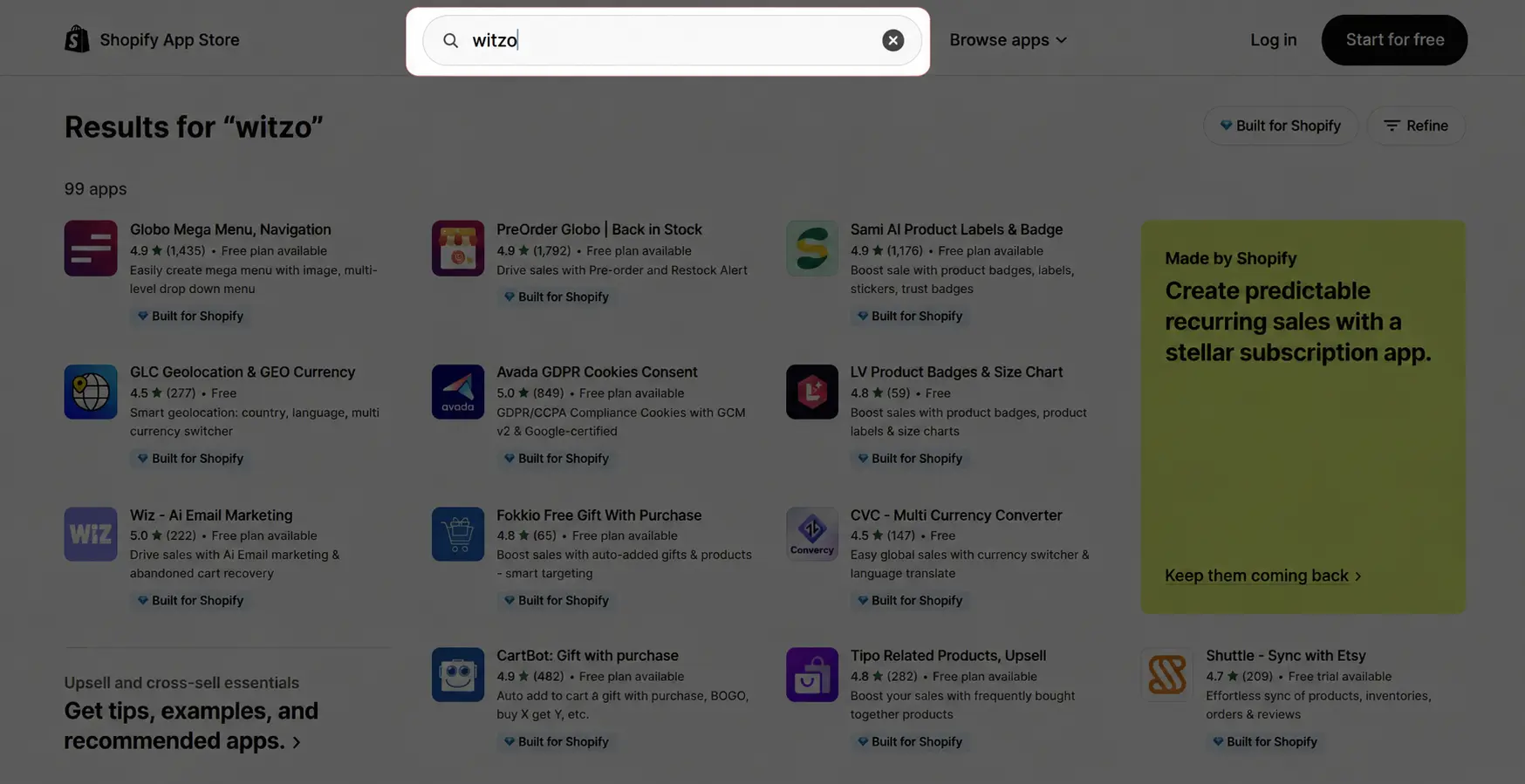
- Sign in to your Shopify Admin and open the Shopify App Store.
- Search for Witzo.
Install the Witzo App
- Open the Witzo app listing.
- Click Install.
Grant Required Permissions
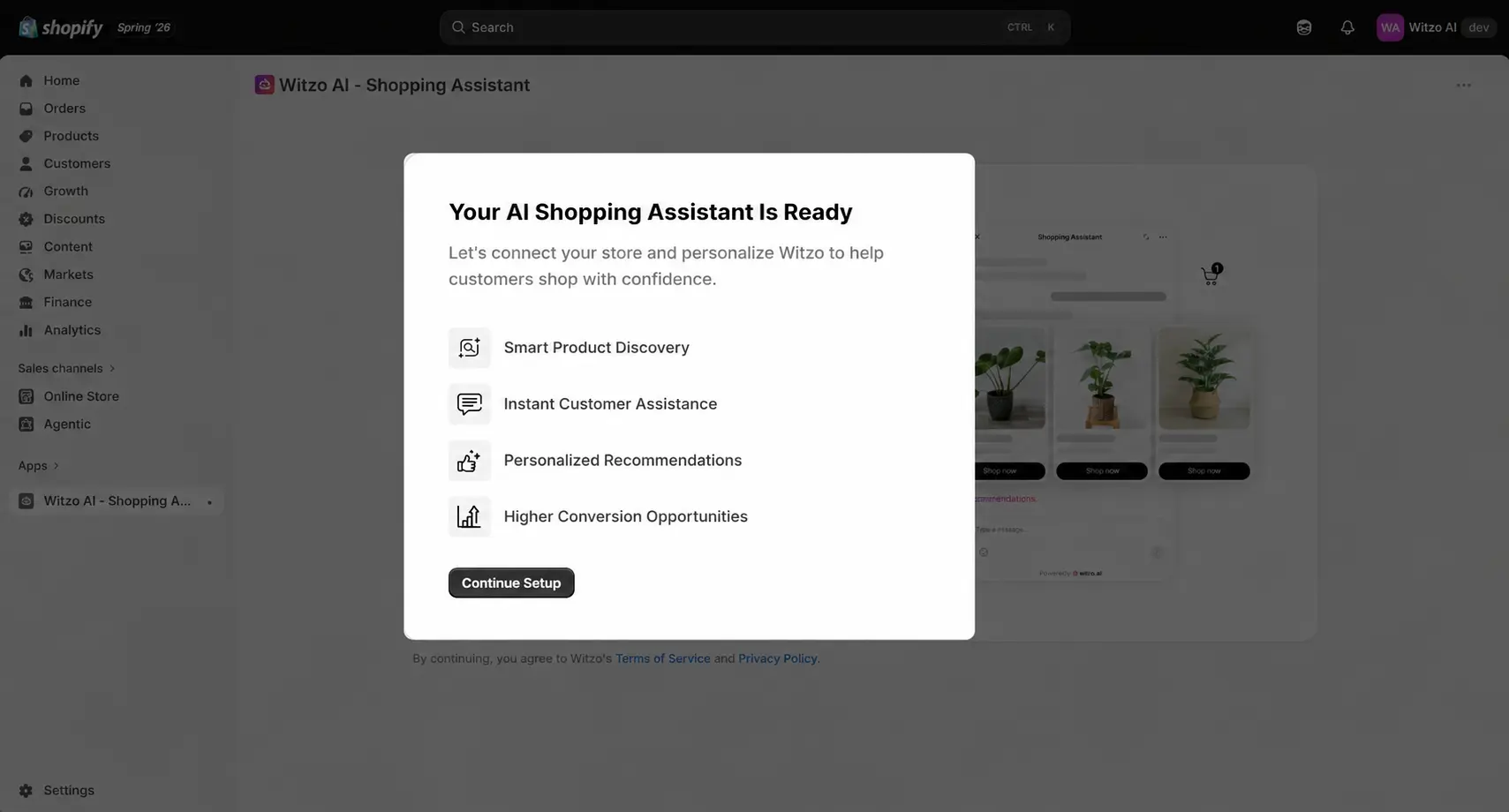
- Shopify will display the permissions requested by Witzo.
- Review the permissions.
- Click Install to continue.
These permissions are required for syncing your products, orders, and store information with Witzo.
Continue Setup
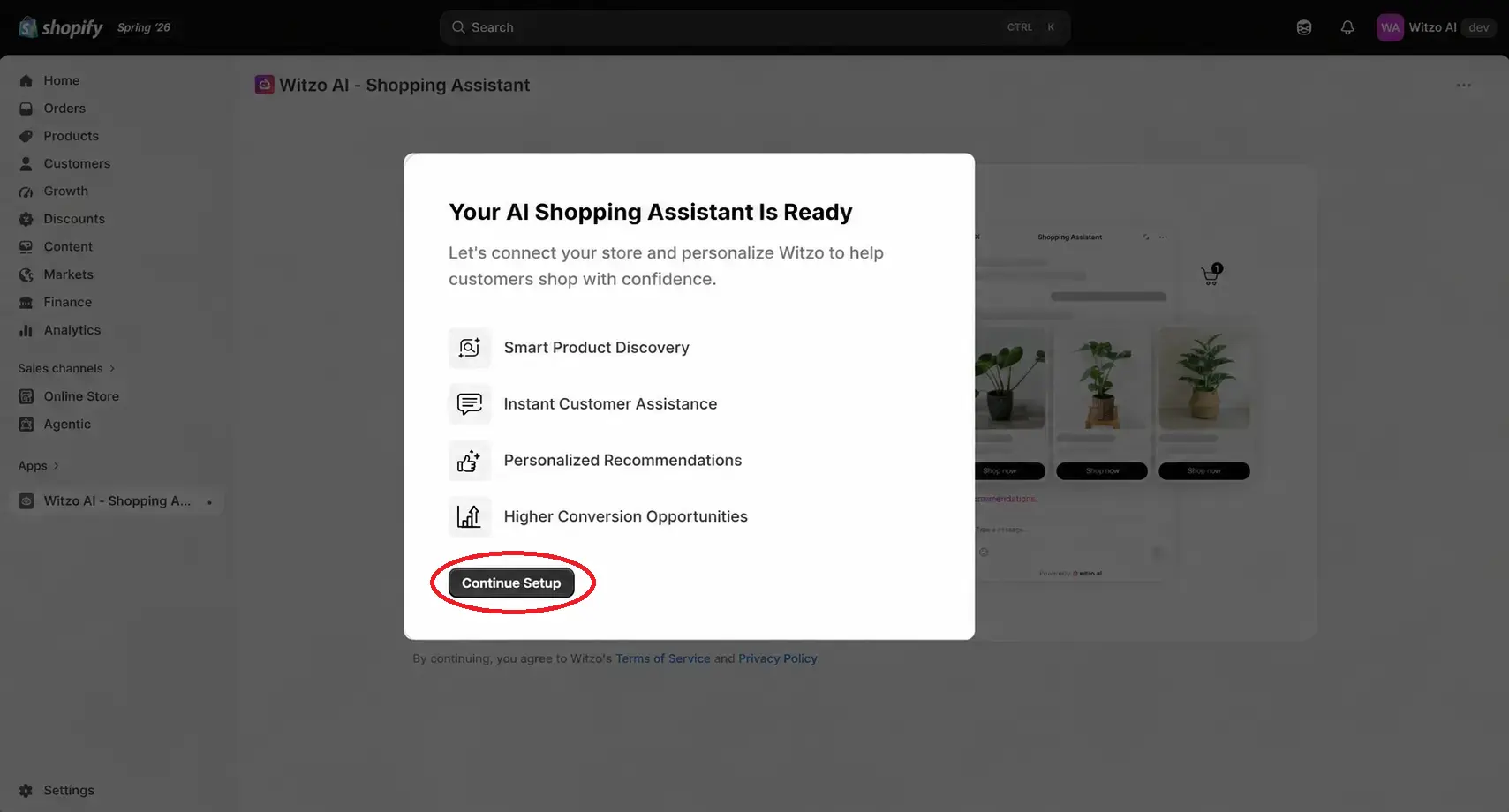
- Click Continue Setup.
- You will be redirected to the Witzo dashboard to finish account linking.
Witzo Dashboard
Complete your Witzo account setup and configure your AI assistant.
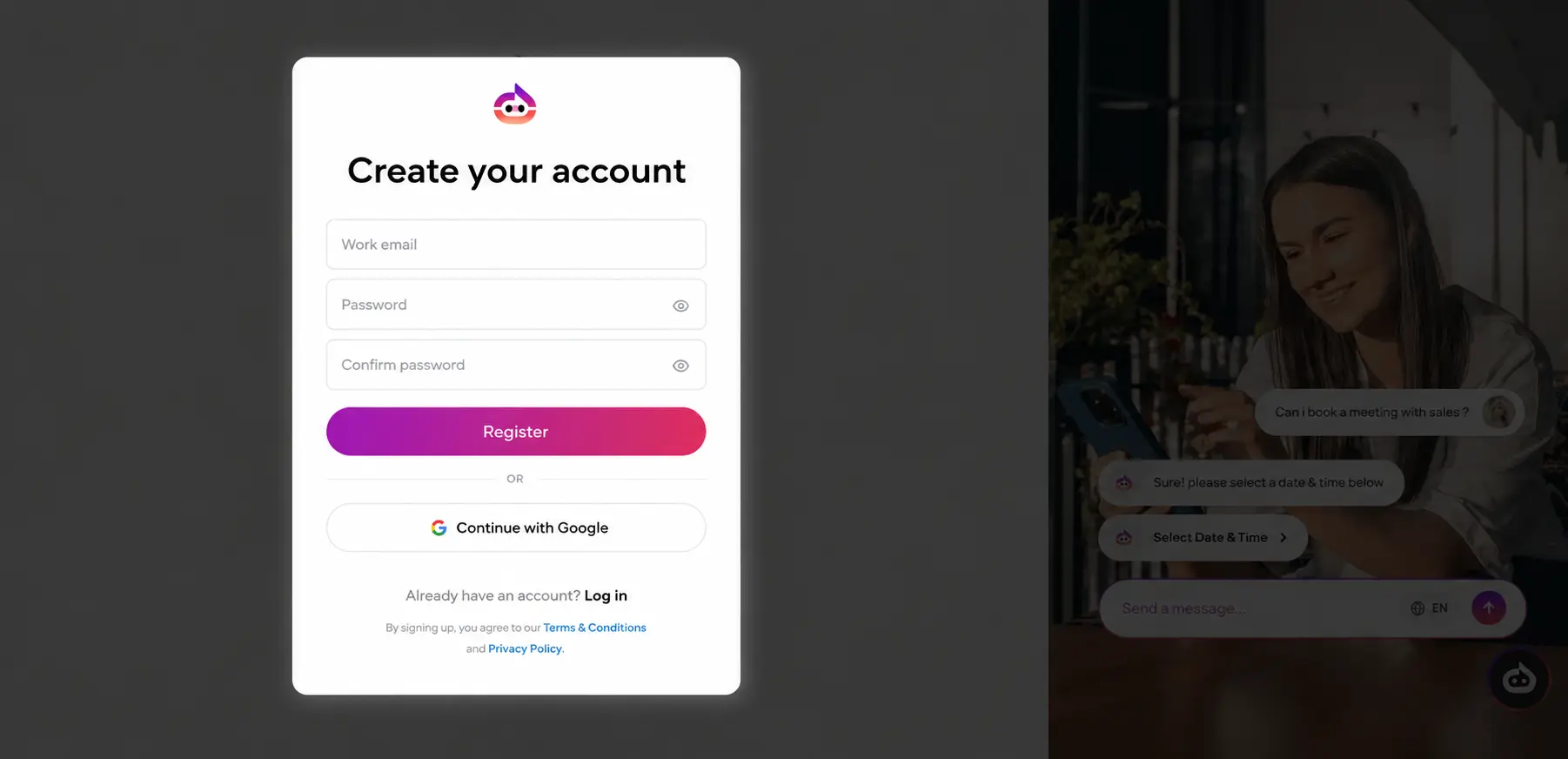
Sync Your Shopify Store
After logging in, synchronize your Shopify store with Witzo.
This process imports:
- Products
- Store information
- Other supported store data
Depending on the size of your store, synchronization may take a few moments.
Customize Your AI Widget
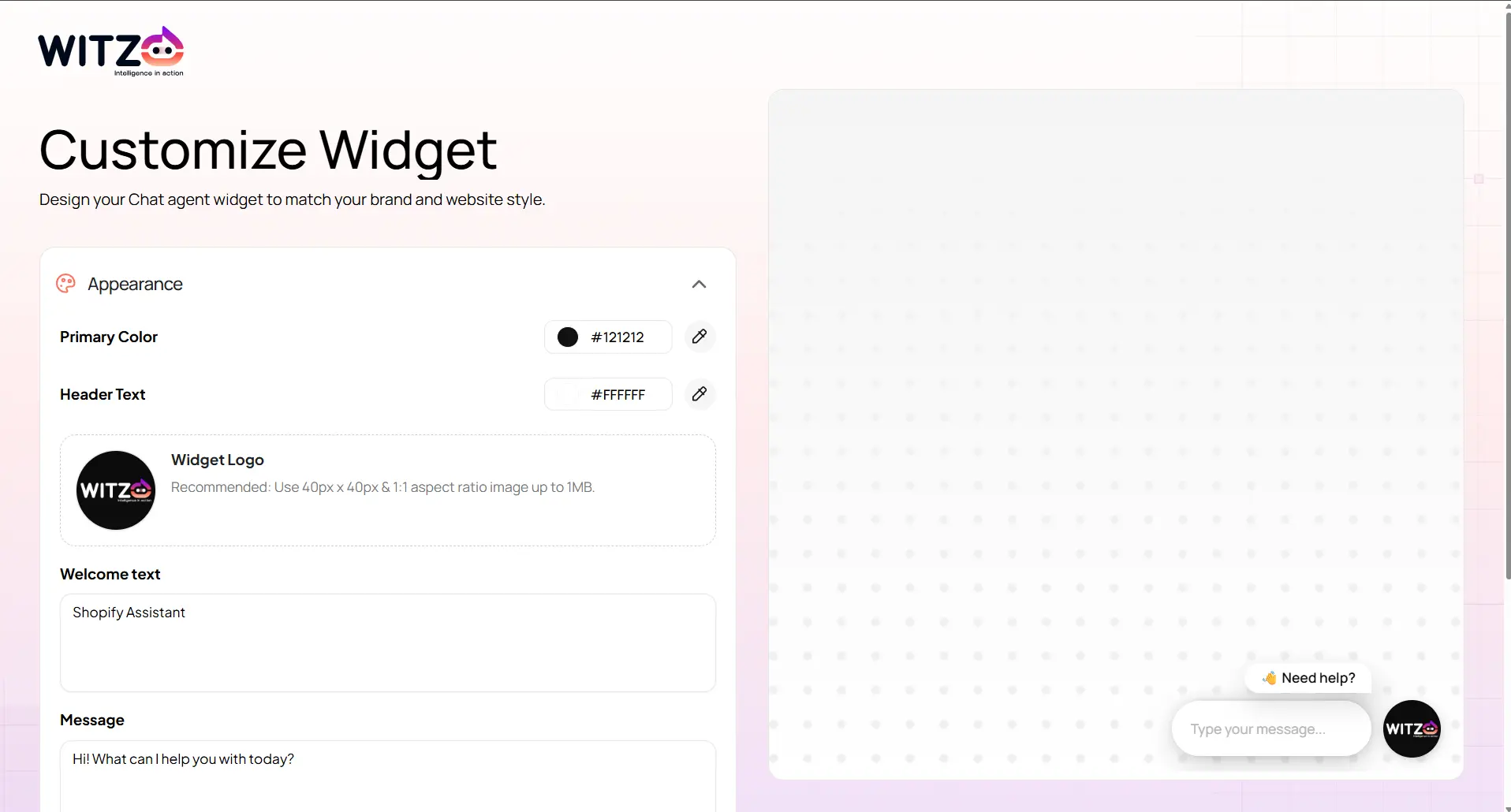
Configure your chatbot before publishing.
You can customize:
- Widget logo
- Chat header text
- Welcome message
- Default language
- Other chatbot settings
Once configuration is complete, click Save & Continue. Witzo automatically redirects you back to Shopify Admin.
Enable the Storefront Widget
The final step is enabling the Witzo widget on your storefront.
Open Apps
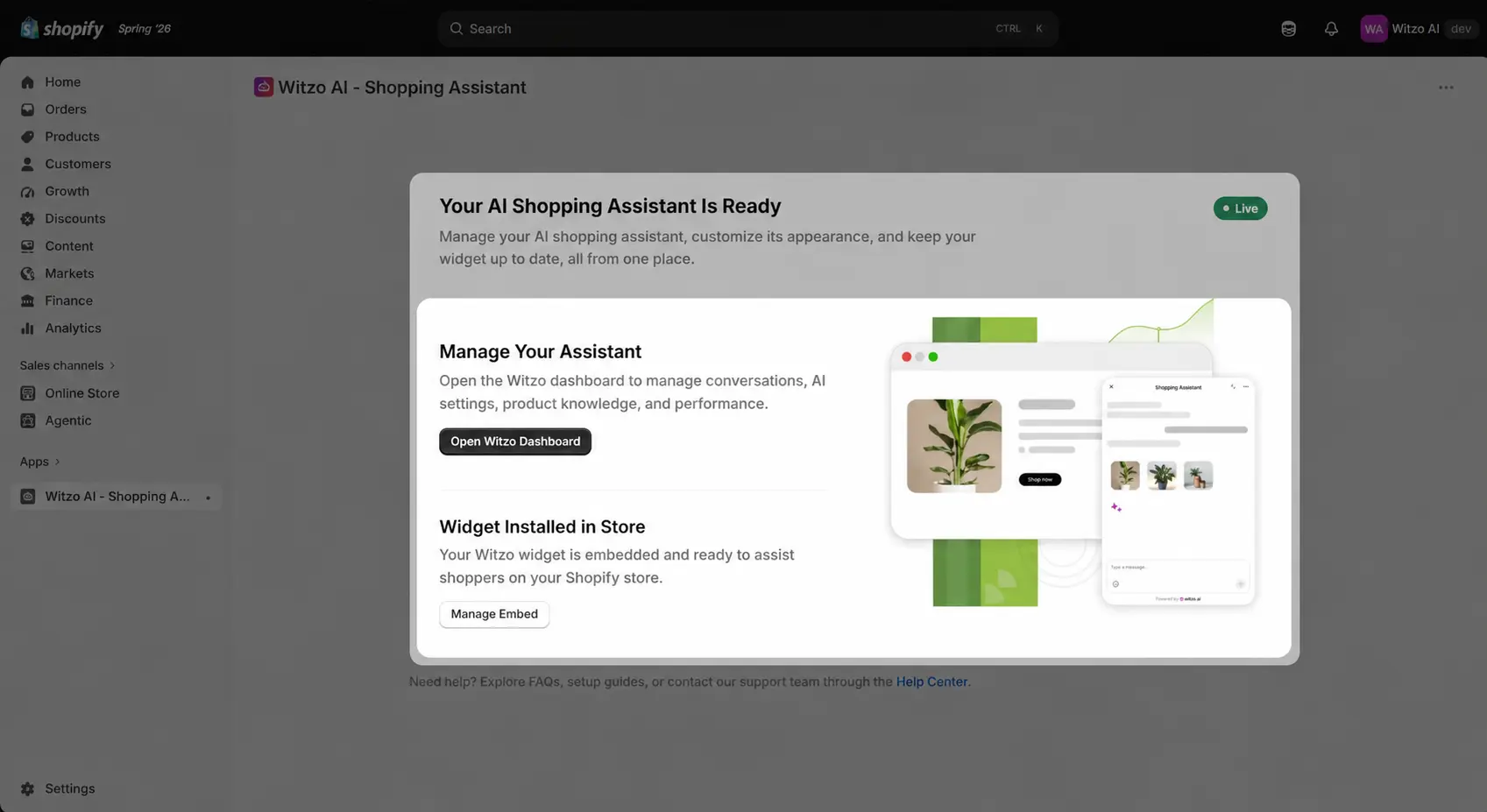
Click Manage Embed at the bottom of the screen.
Enable the Witzo App Embed
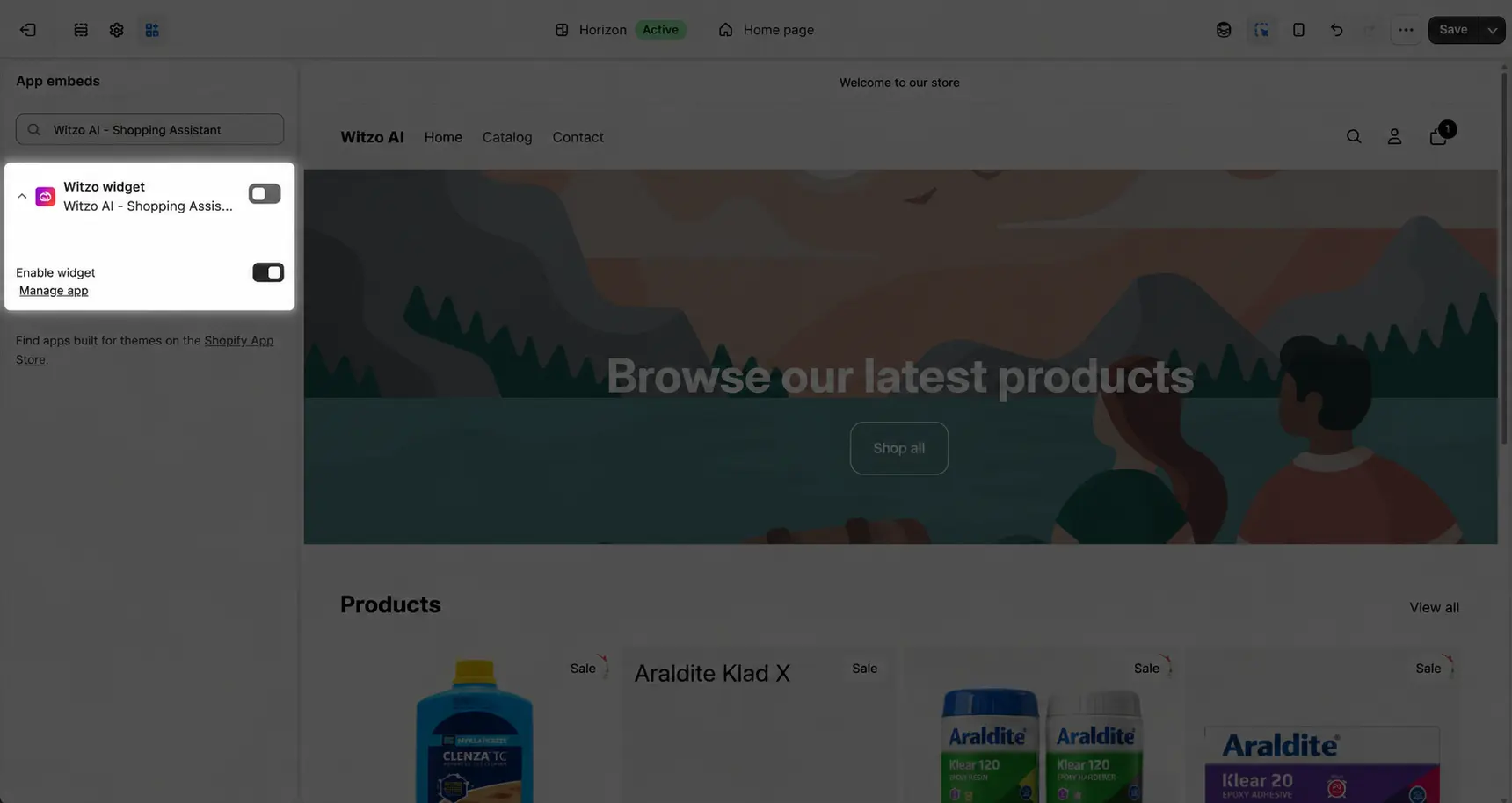
Inside the Theme Editor:
- Locate Witzo Widget
- Toggle it On
Save Your Changes
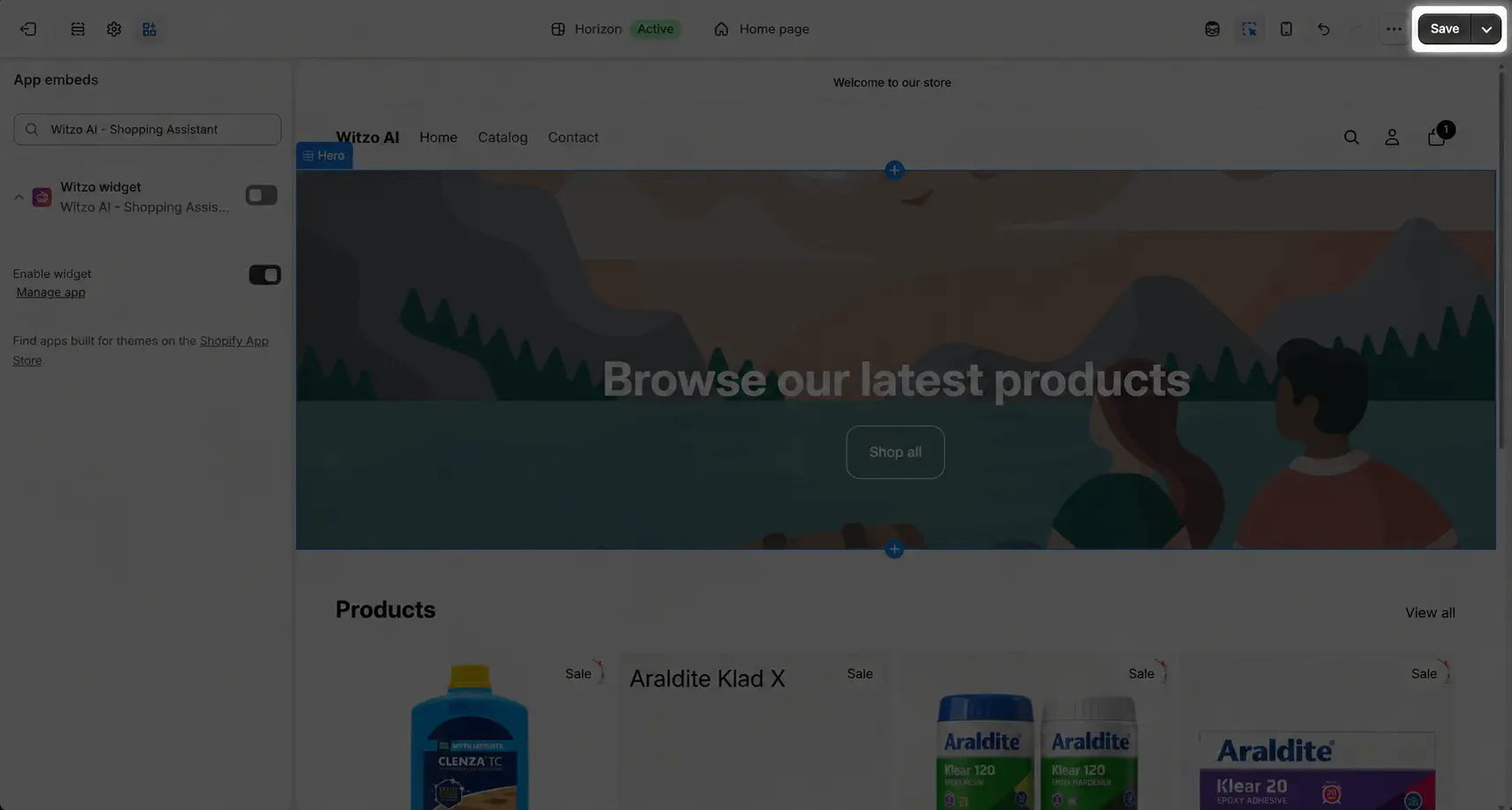
Click Save in the Theme Editor.
Installation Complete
Your Witzo AI Widget is now installed and live on your Shopify storefront.
Customers can now interact with your AI assistant directly from your online store.
Troubleshooting
Unable to Install the App
- Ensure you are logged in as the Store Owner or have permission to install apps.
- Verify that your Shopify store is active.
- Refresh the page and try again.
Unable to Connect to Witzo
- Check your internet connection.
- Sign out and sign back in.
- Retry the connection process.
Products Not Syncing
- Wait a few minutes for synchronization to complete.
- Refresh the Witzo dashboard.
- Start synchronization again if necessary.
Widget Not Visible
- Confirm that the Witzo App Embed is enabled.
- Save your theme after enabling the app embed.
- Refresh your storefront.
Need Help?
If you encounter any issues during installation, contact Witzo Support.