WhatsApp Integration
Connect your WhatsApp Business Account with Witzo to engage with visitors and leads directly through WhatsApp. Once connected, Witzo can hand off conversations to WhatsApp so your team can continue the conversation on a familiar channel.
Overview
WhatsApp Integration enables your AI assistant to connect with your WhatsApp Business account, allowing visitors to continue conversations on WhatsApp while helping your team respond faster and more efficiently.
This feature is available on Standard and Enterprise plans only.
Benefits
- engage with leads using your WhatsApp Business account
- manage customer conversations more efficiently
- complete setup through a one-time onboarding flow
Prerequisites
Before connecting WhatsApp, make sure you have:
- a WhatsApp Business Account
- a Facebook Account
- a Facebook Page
Connect WhatsApp
Open the WhatsApp Integration
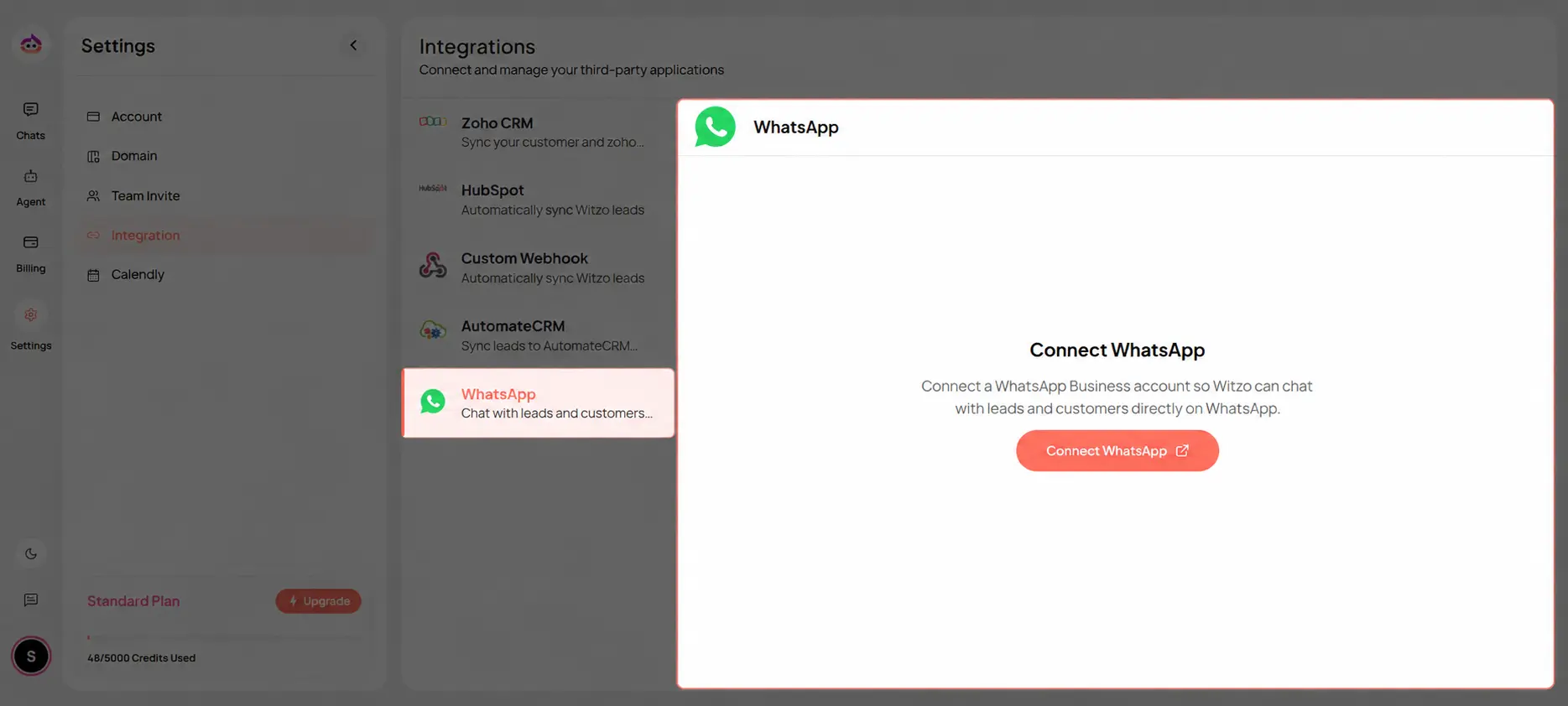
- Open the Settings page.
- Select Integration from the left sidebar.
- Click WhatsApp from the list of available integrations.
- Click Connect WhatsApp.
- You will be redirected to the Facebook Login page.
Sign in to Facebook
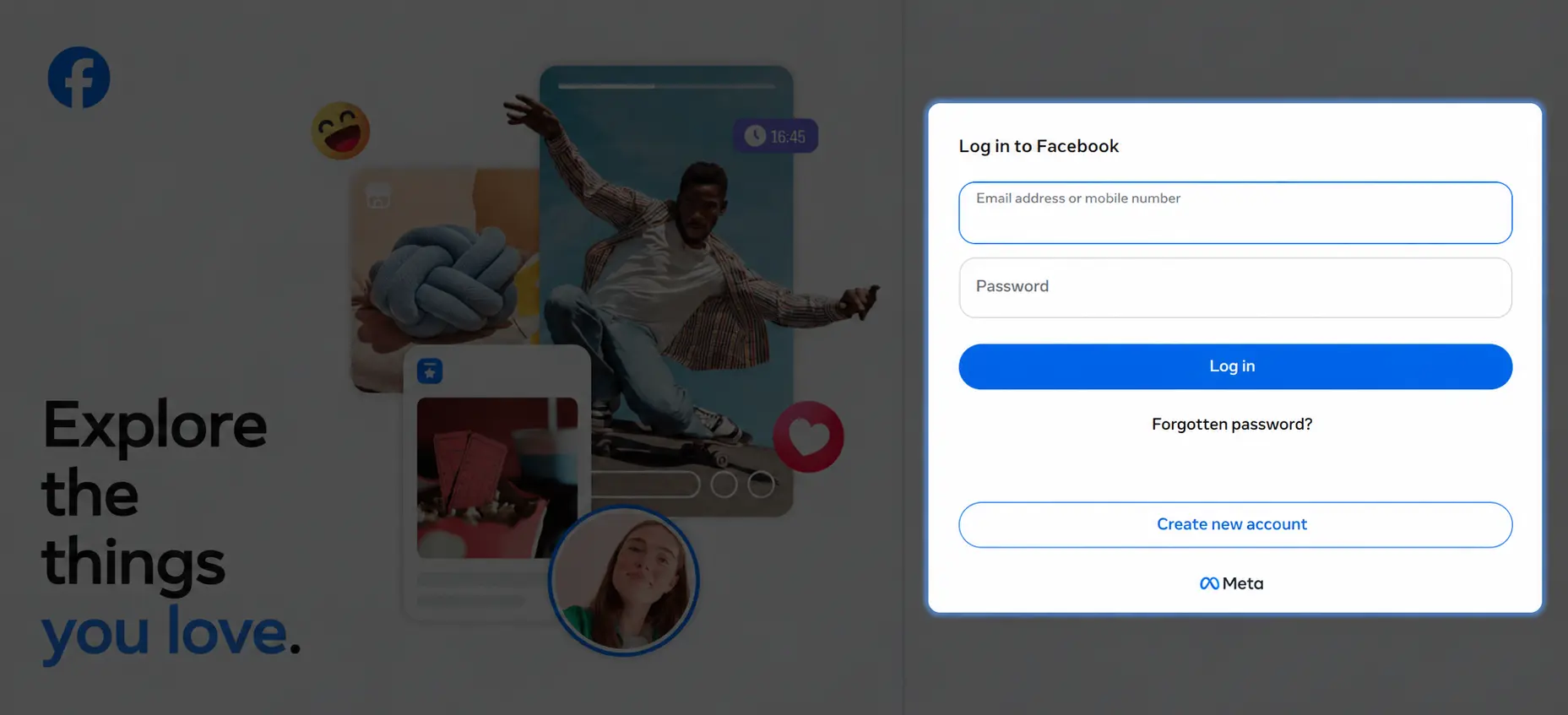
- Sign in using your Facebook account.
Start the Onboarding Process
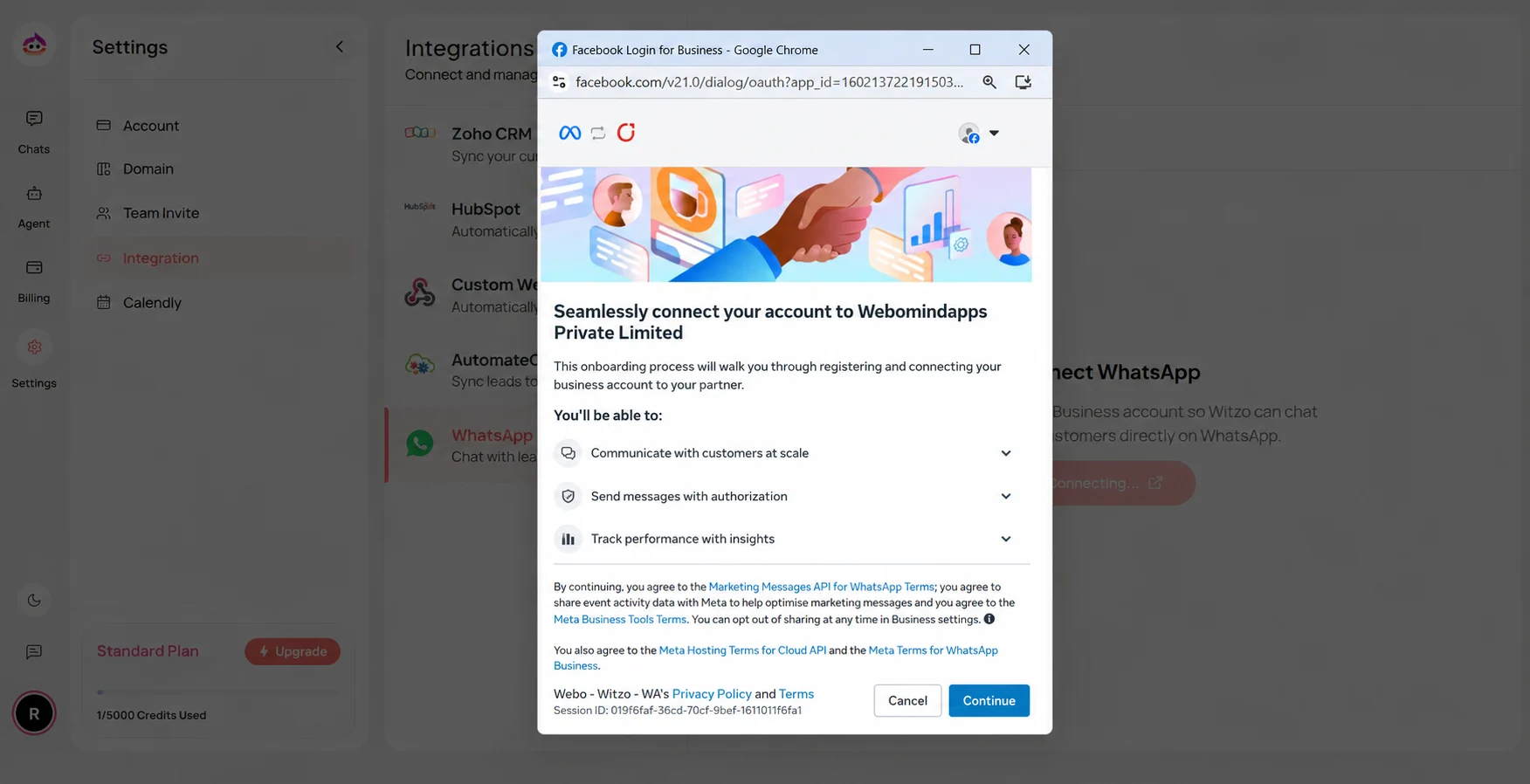
- Review the information displayed.
- Click Continue to begin the WhatsApp onboarding process.
Select Business Assets
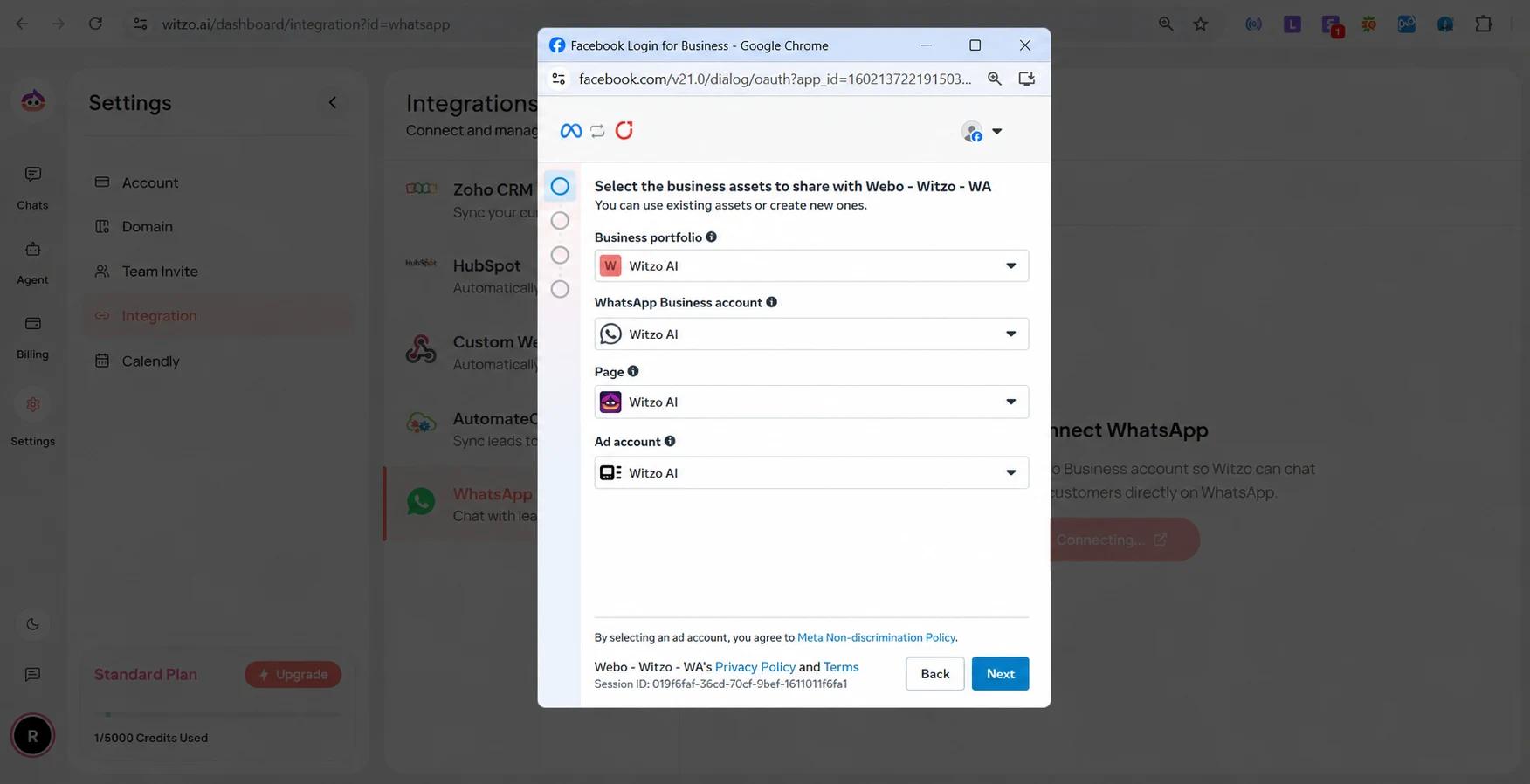
- Select your Business Portfolio from the dropdown.
- Select your WhatsApp Business Account.
- Select your Facebook Page.
- Select the appropriate Ad Account.
- Click Next to continue.
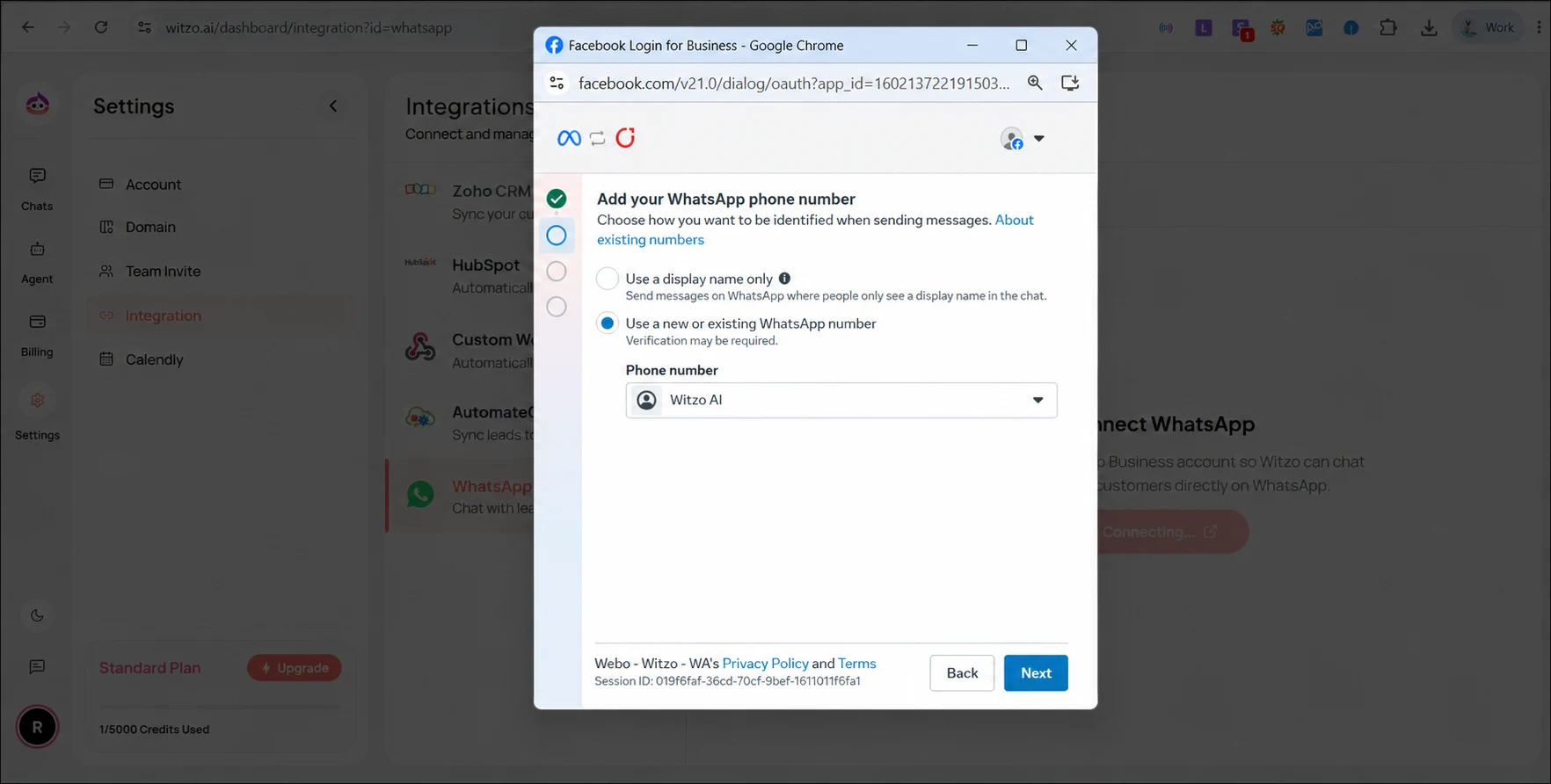
Choose a Display Name
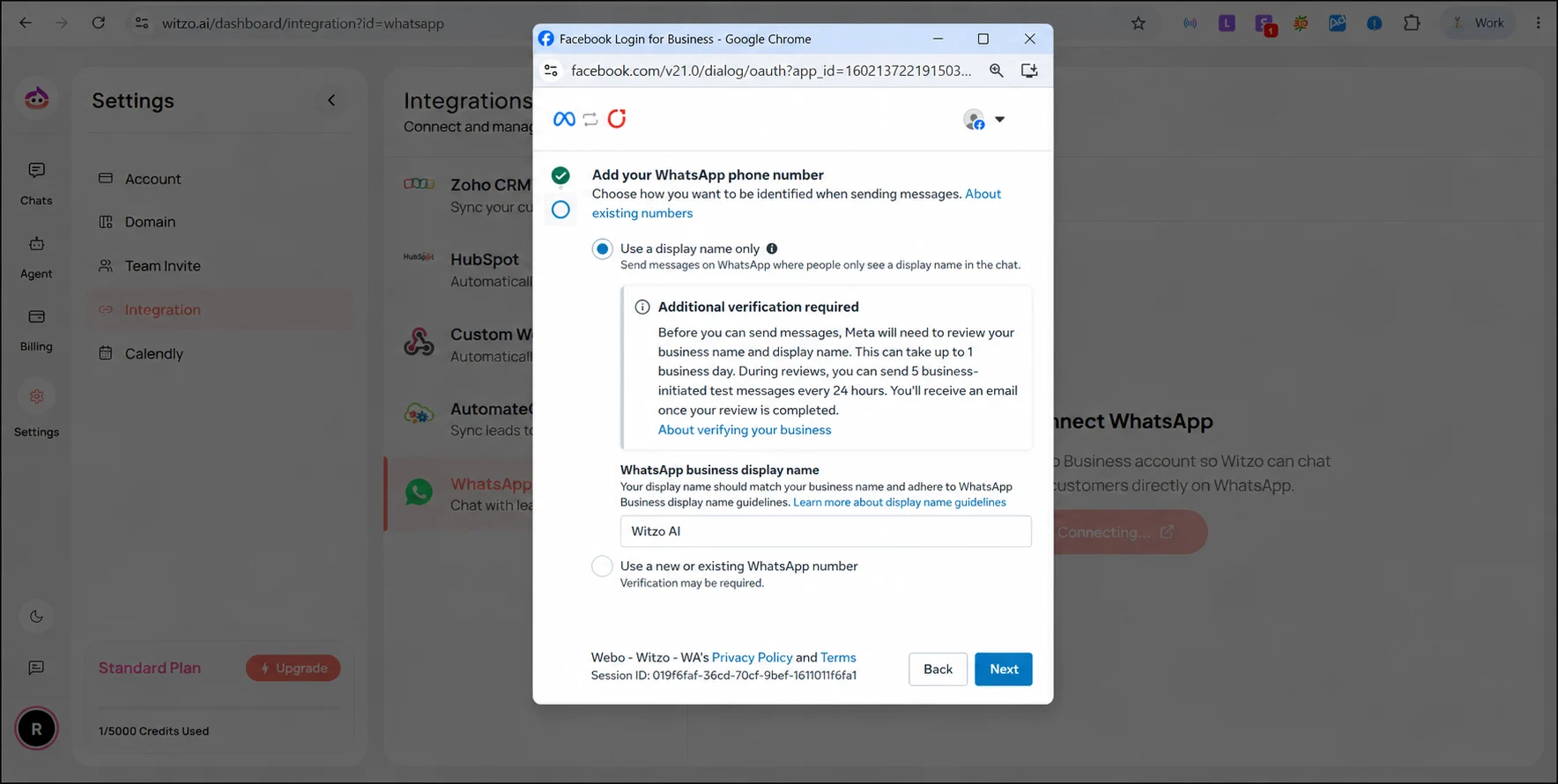
- Choose how you want your WhatsApp Business account to be identified.
- Select Use a display name only if you want customers to see your business display name in chats.
- Alternatively, select Use a new or existing WhatsApp number if you want to connect a phone number.
- Click Next to continue.
Select a Phone Number
- Select the WhatsApp phone number you want to connect.
- Click Next to continue the onboarding process.
Review and Confirm
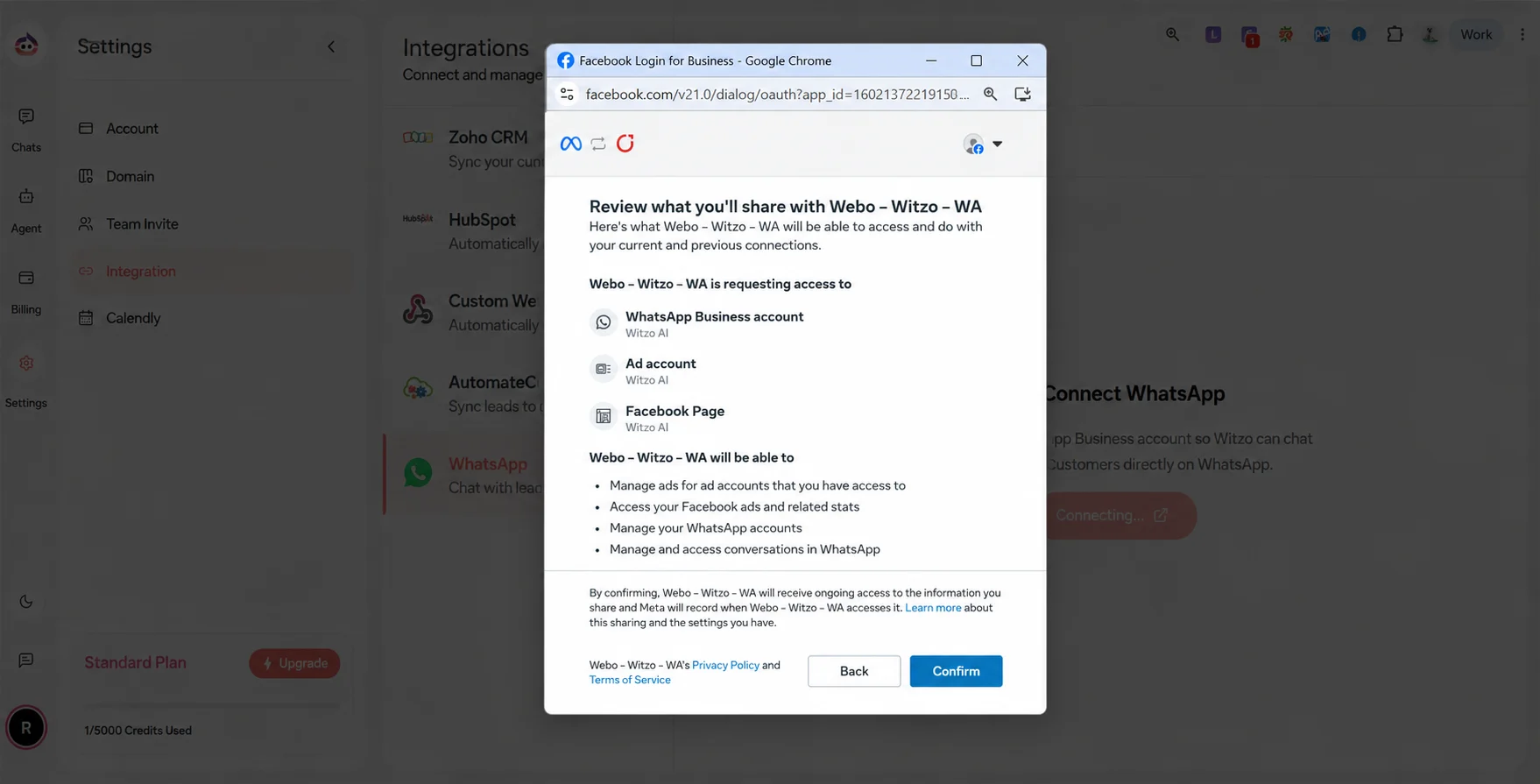
- Review the permissions and account details.
- Click Confirm to authorize the connection.
Connecting Your Account
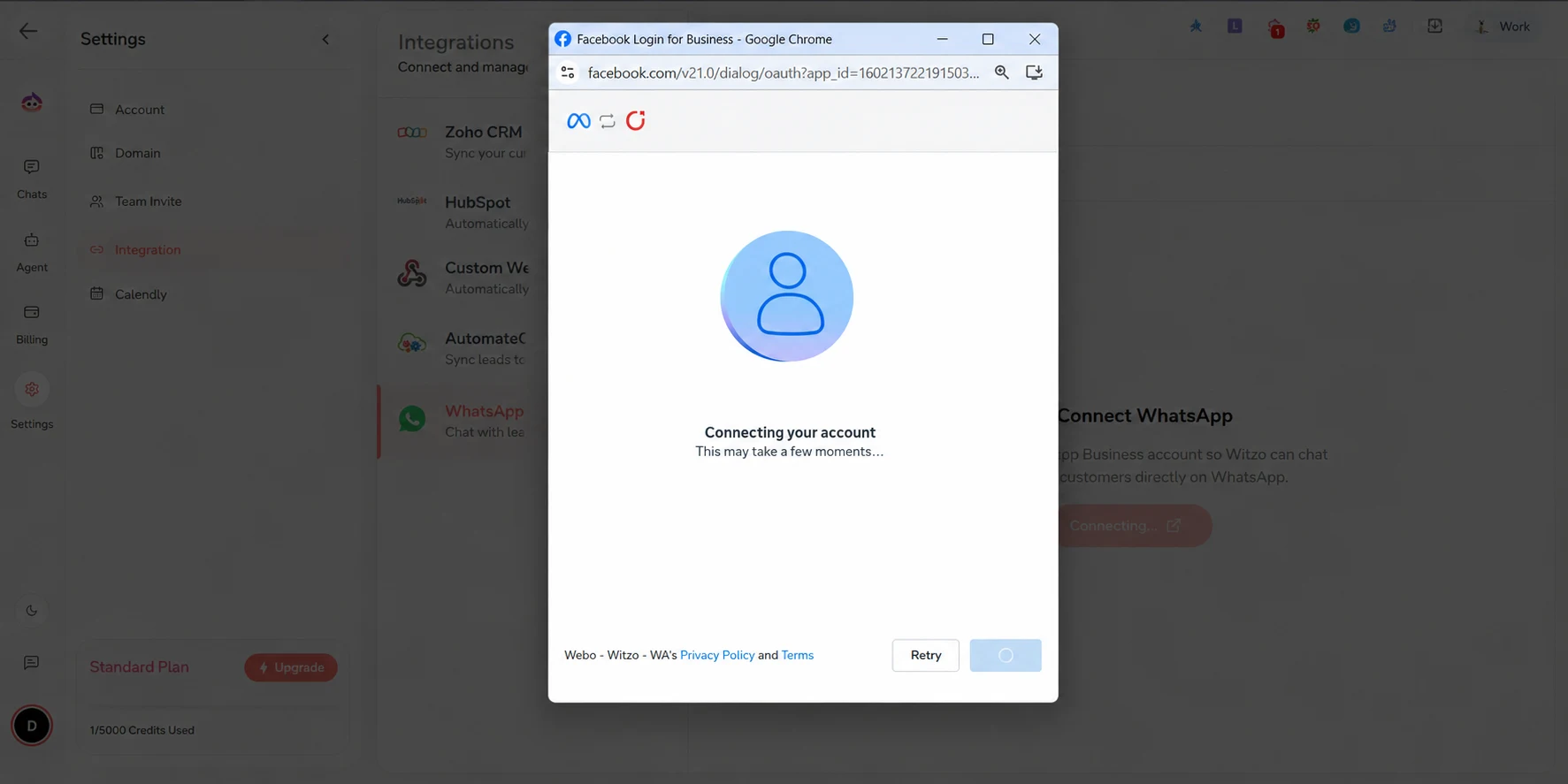
- Wait while Facebook securely connects your WhatsApp Business account.
Connection Successful
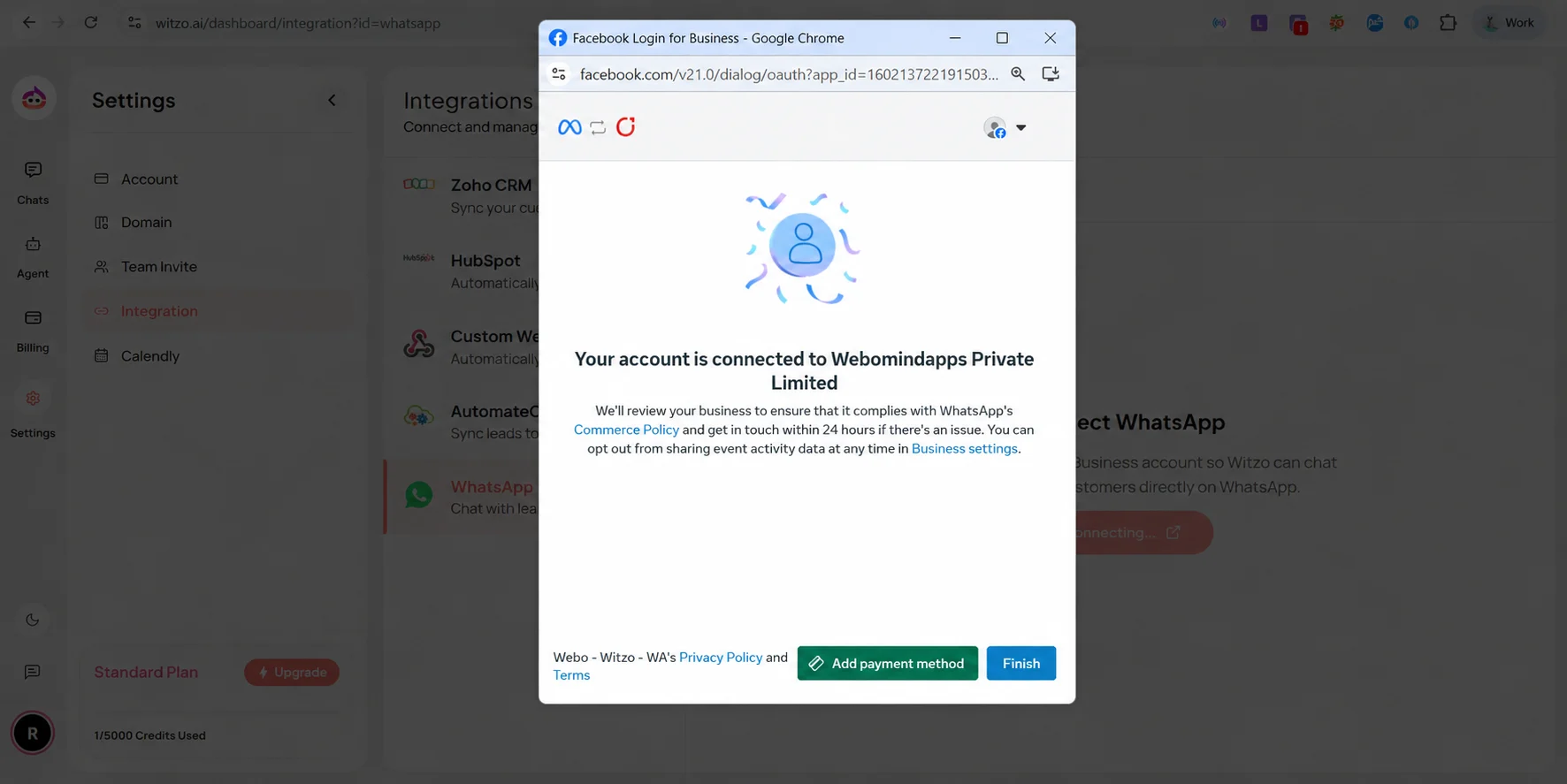
- Once the connection is complete, click Finish.
- You will be redirected back to the Witzo Dashboard.
WhatsApp Connected
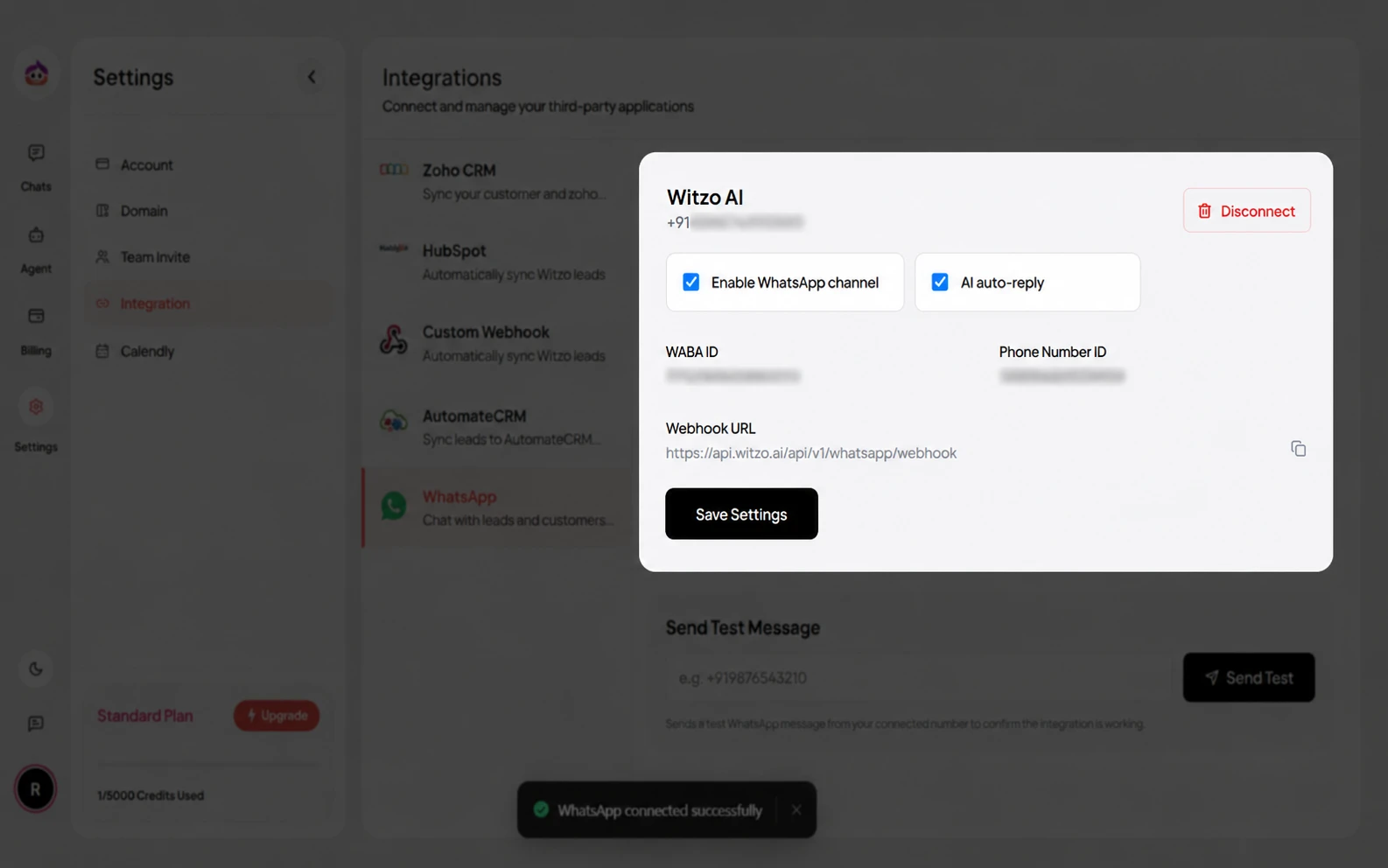
Your WhatsApp Business account is now successfully connected.
Message Template Approval
If your workflow sends WhatsApp messages outside a live customer-service window, template approval may be required by Meta before those messages can be used.
- prepare approved message templates early in the rollout
- keep template language aligned with your business use case
- expect approval timelines to depend on Meta's review process
WhatsApp Business API Cost Notes
WhatsApp usage may involve Meta or provider-side messaging costs that are separate from your Witzo plan.
- confirm your expected conversation volume before rollout
- review pricing with the WhatsApp Business provider tied to your account
- include template and utility-message costs in operational planning
Manage Your Connection
You can return to Settings > Integration > WhatsApp at any time to:
- view your connection status
- reconnect your account
- disconnect WhatsApp if needed
Troubleshooting
Unable to Connect WhatsApp
Verify that:
- your WhatsApp Business account is active
- you completed the authorization process
- your internet connection is stable
If the issue persists, disconnect the integration and try connecting again.
Need Help?
If you are having trouble connecting your WhatsApp Business account, contact Witzo Support.