Google Calendar Integration
Connect Google Calendar with Witzo to let visitors book appointments directly from the chat widget. Once connected, Witzo checks your real-time availability and creates events on your calendar automatically whenever a visitor schedules a meeting.
Overview
Google Calendar Integration lets your AI assistant handle appointment bookings on your behalf, so visitors can find an open slot and book a meeting without leaving the conversation.
Benefits
- let visitors book appointments straight from the chat widget
- automatically sync new bookings to your Google Calendar
- avoid double-booking by checking your real-time availability
Prerequisites
Before connecting Google Calendar, make sure you have:
- a Google Account with an active calendar
- access to the Appointment integration from your Witzo Settings
Connect Google Calendar
Open the Appointment Integration
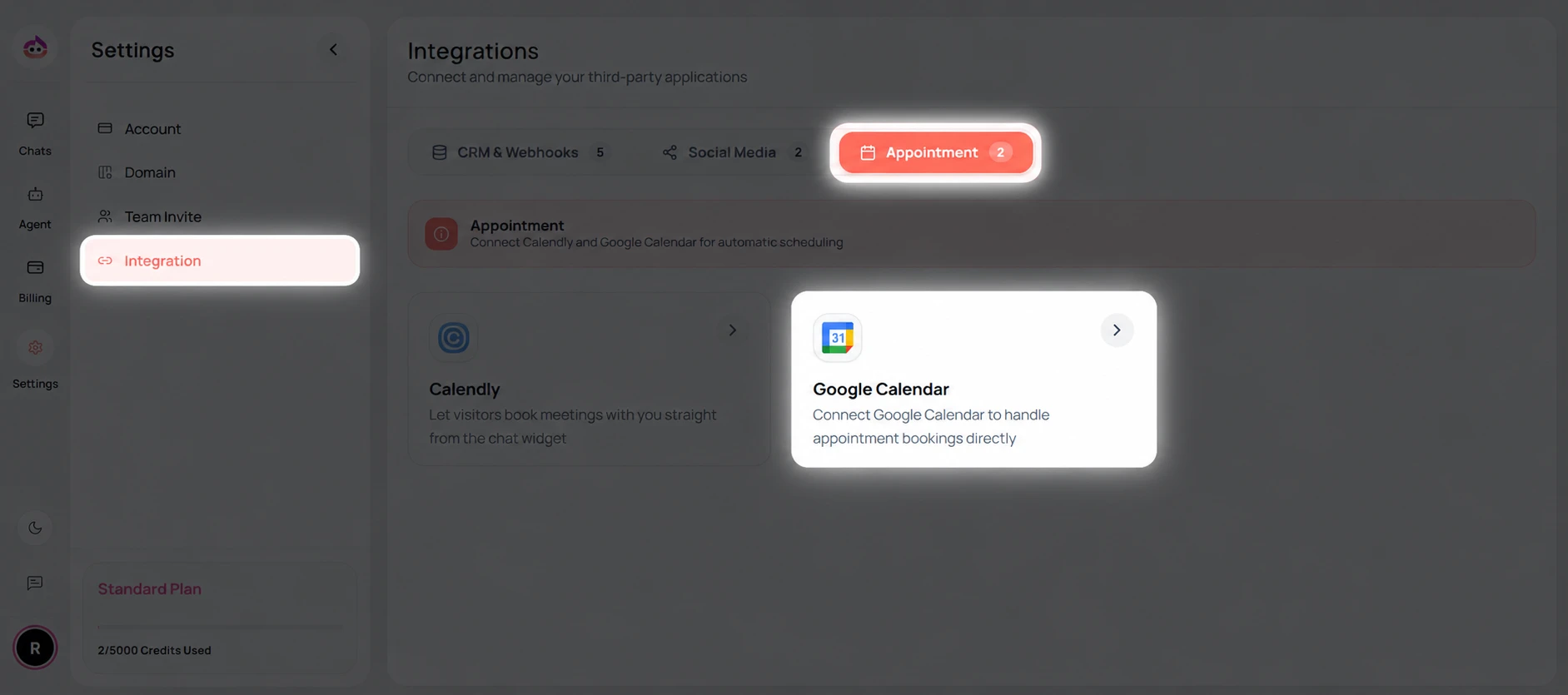
- Open the Settings page.
- Select Integration from the left sidebar.
- Click the Appointment tab.
- Click the Google Calendar card from the list of available integrations.
Connect Google Calendar
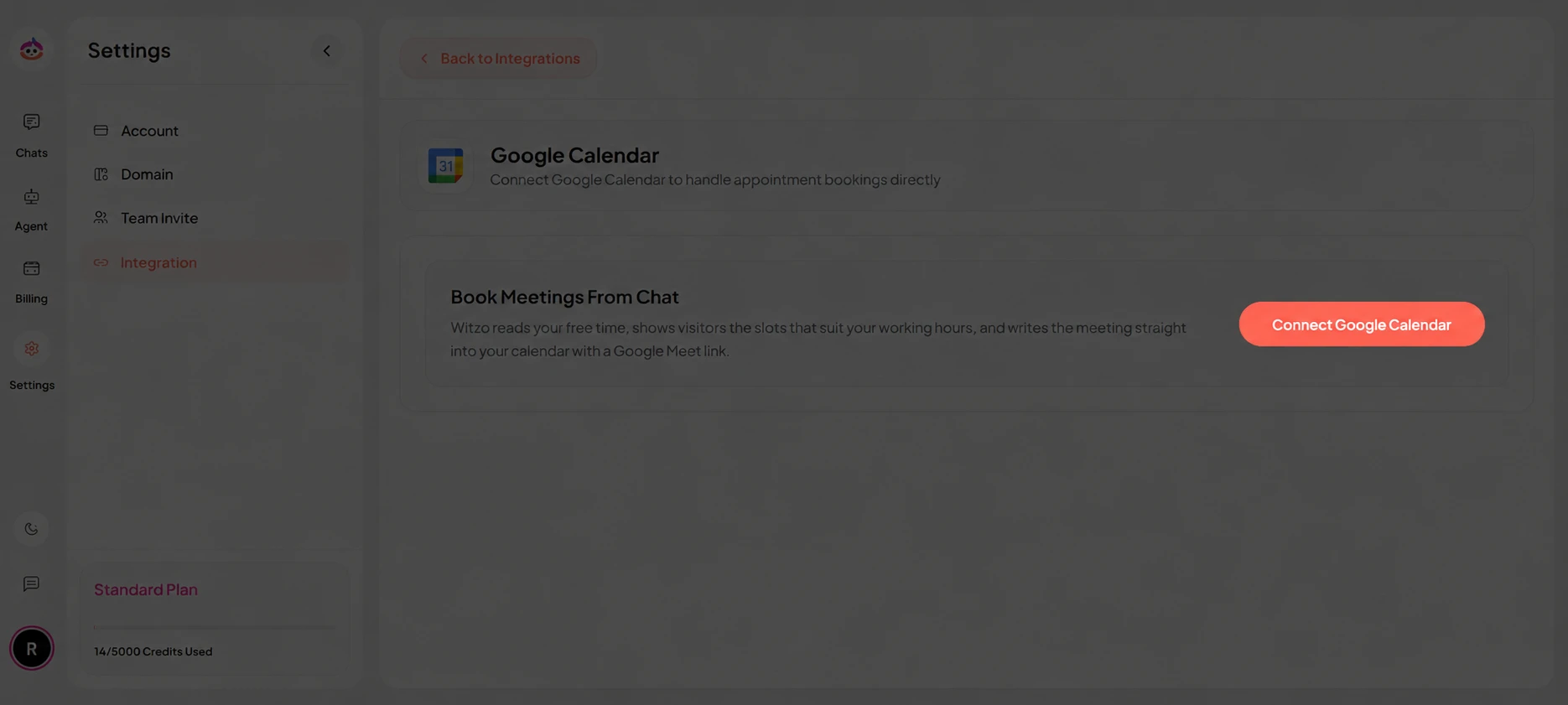
- Review how Witzo uses the integration to read your free time, show visitors matching slots, and write meetings into your calendar with a Google Meet link.
- Click Connect Google Calendar.
Choose Your Google Account
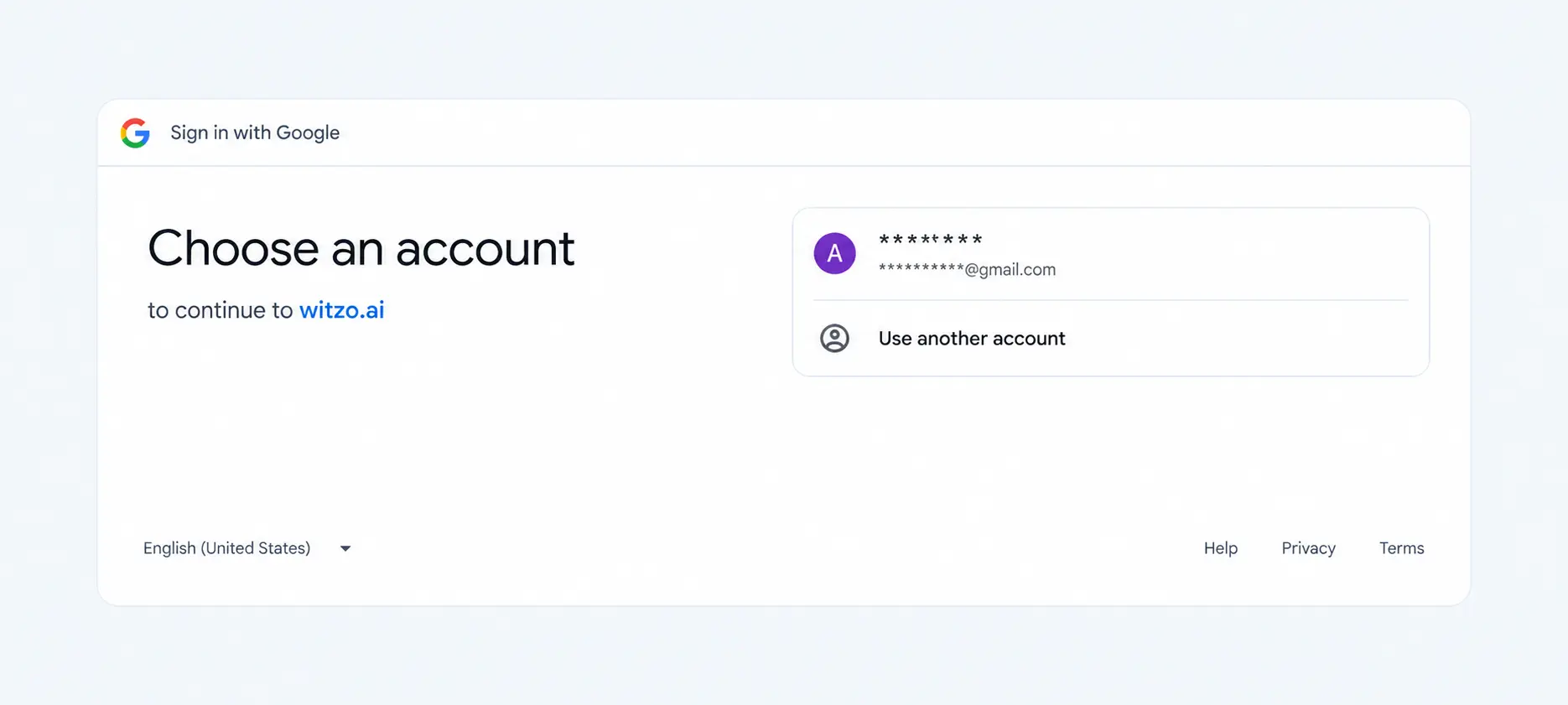
- You will be redirected to the Sign in with Google page.
- Select the Google account you want to connect, or click Use another account to sign in with a different one.
Confirm Your Sign-In
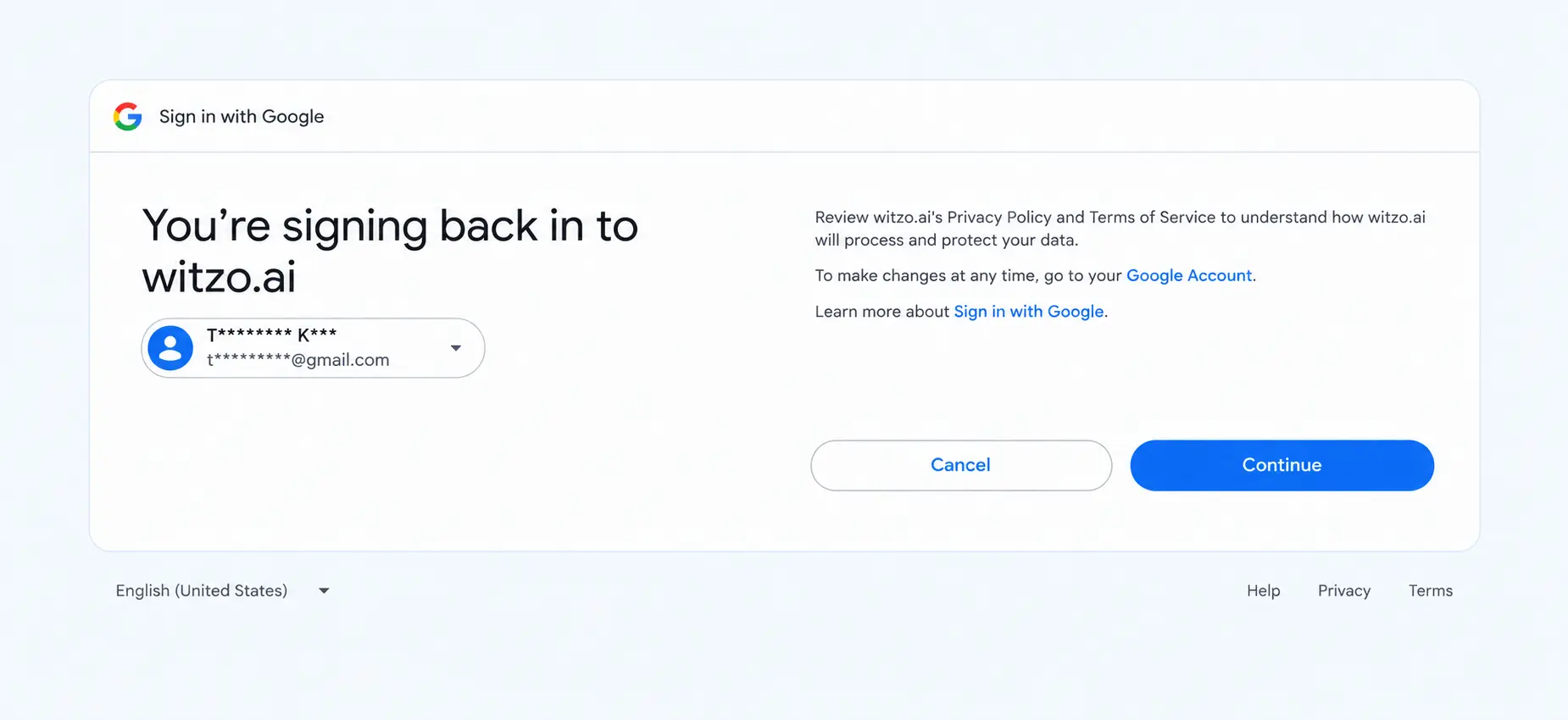
- Review the account shown on the You're signing back in screen.
- Click Continue to proceed.
Grant Calendar Access
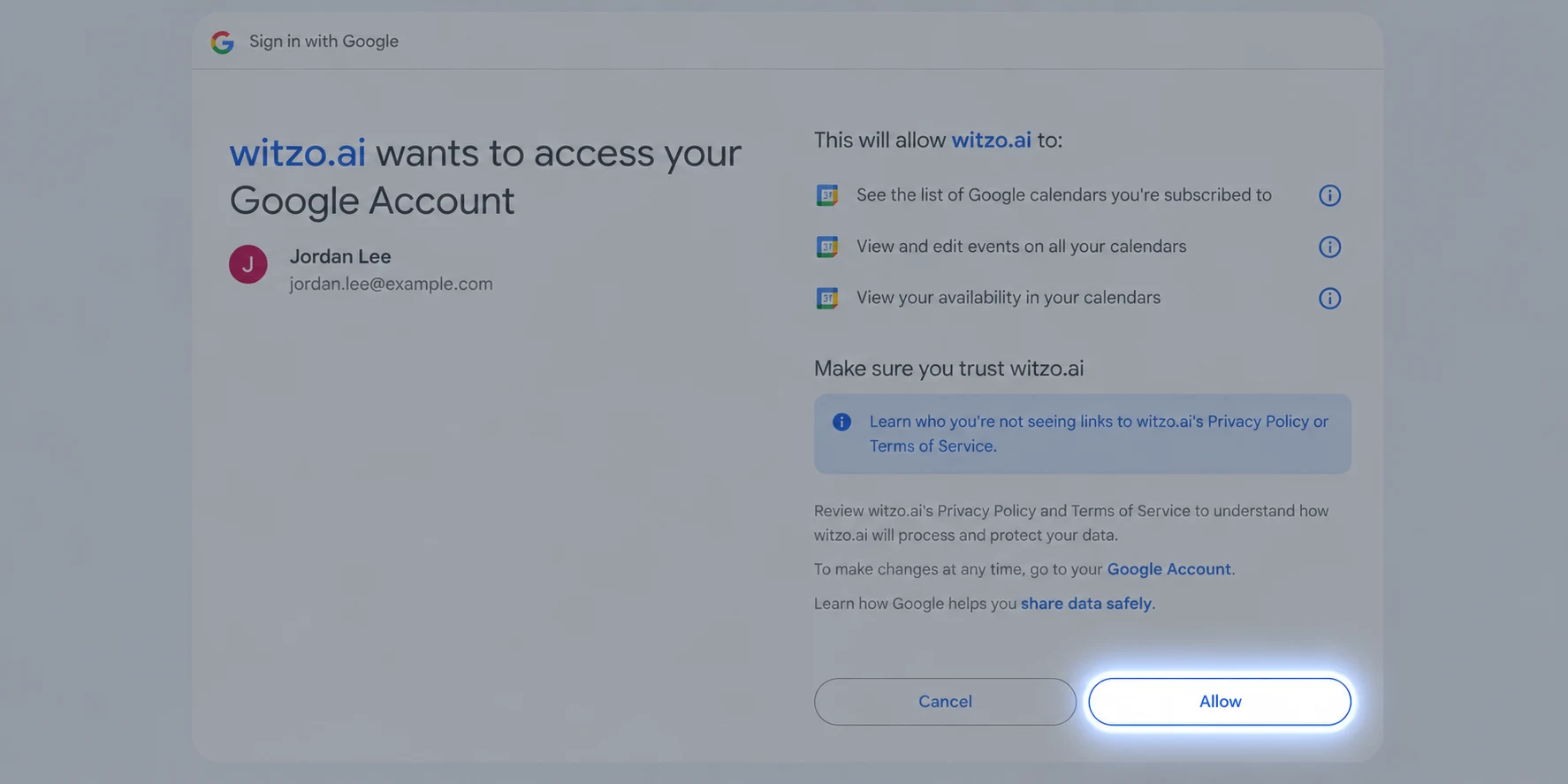
- Review the permissions Witzo is requesting, including viewing your calendars, viewing and editing events, and checking your availability.
- Click Allow to authorize the connection.
- You will be redirected back to the Witzo Dashboard with Google Calendar connected.
Manage Your Integration Settings
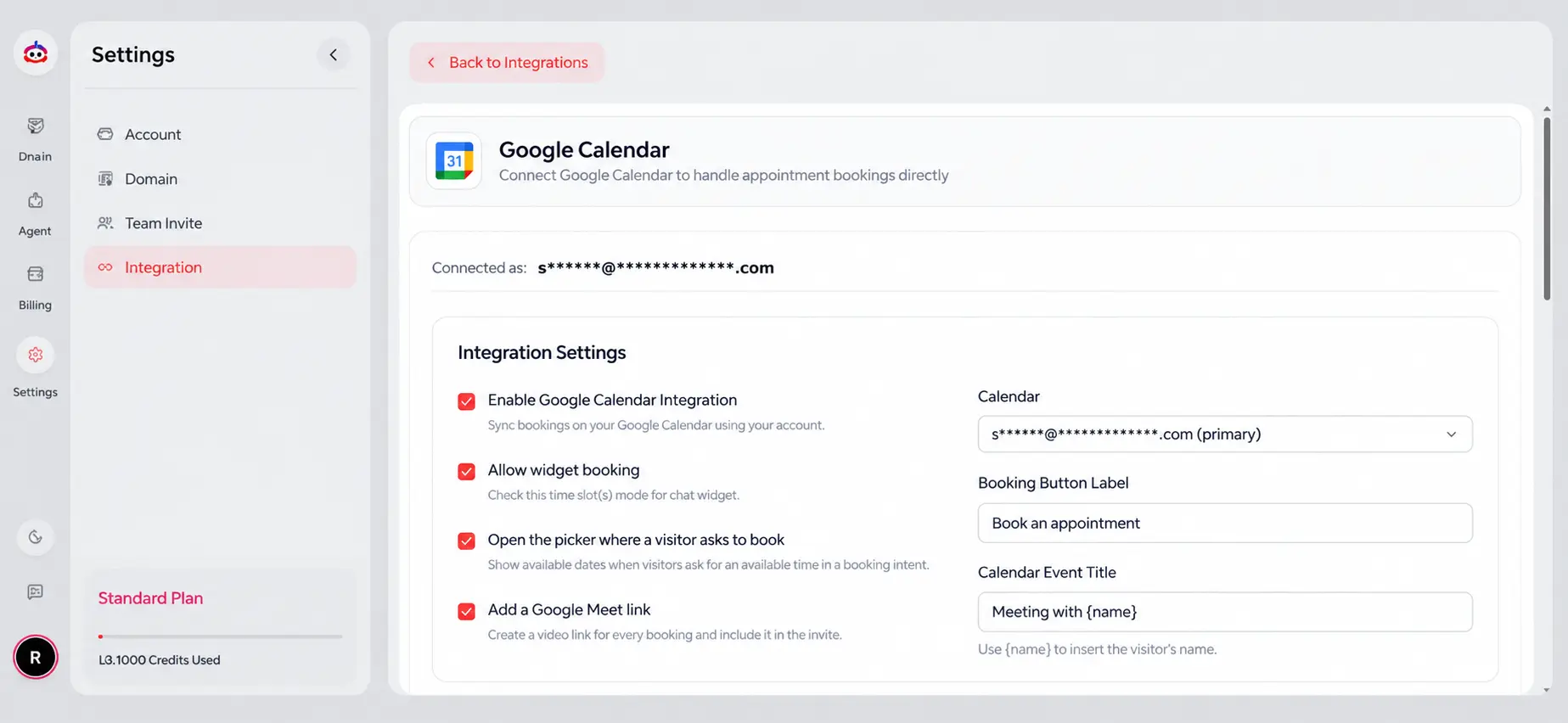
- Once connected, the Google Calendar panel opens showing the account you're Connected.
- Under Integration Settings, configure how the integration behaves:
- Enable Google Calendar Integration -sync bookings to your Google Calendar using your account.
- Allow widget booking -let visitors check available time slots in the chat widget.
- Open the picker where a visitor asks to book -show available dates when visitors ask about booking or availability.
- Add a Google Meet link -create a video link for every booking and include it in the invite.
- On the right, set the Calendar to sync with, the Booking Button Label shown to visitors, and the Calendar Event Title (use
{name}to insert the visitor's name).
Manage Your Connection
You can return to Settings > Integration > Appointment at any time to:
- view your connection status and connected account
- update your integration settings, such as the booking button label, calendar event title, or synced calendar
- reconnect your account
- disconnect Google Calendar if needed
Troubleshooting
Unable to Connect Google Calendar
Verify that:
- your Google account has an active calendar
- you approved all requested permissions during sign-in
If the issue persists, disconnect the integration and try connecting again.
Need Help?
If you are having trouble connecting Google Calendar, contact Witzo Support.