Calendly Integration
Connect Calendly with Witzo to let visitors book meetings with you straight from the chat widget. Once connected, Witzo opens your chosen Calendly event type inside the widget whenever a visitor asks to schedule an appointment.
Overview
Calendly Integration automates appointment booking by embedding your Calendly scheduling flow directly into conversations, so visitors can pick a time without ever leaving the chat.
Benefits
- let visitors book meetings with you straight from the chat widget
- automate appointment booking using your existing Calendly event types
- keep scheduling in sync with your connected Calendly account
Prerequisites
Before connecting Calendly, make sure you have:
- an active Calendly Account
- at least one event type configured in Calendly
Connect Calendly
Open the Appointments Integration
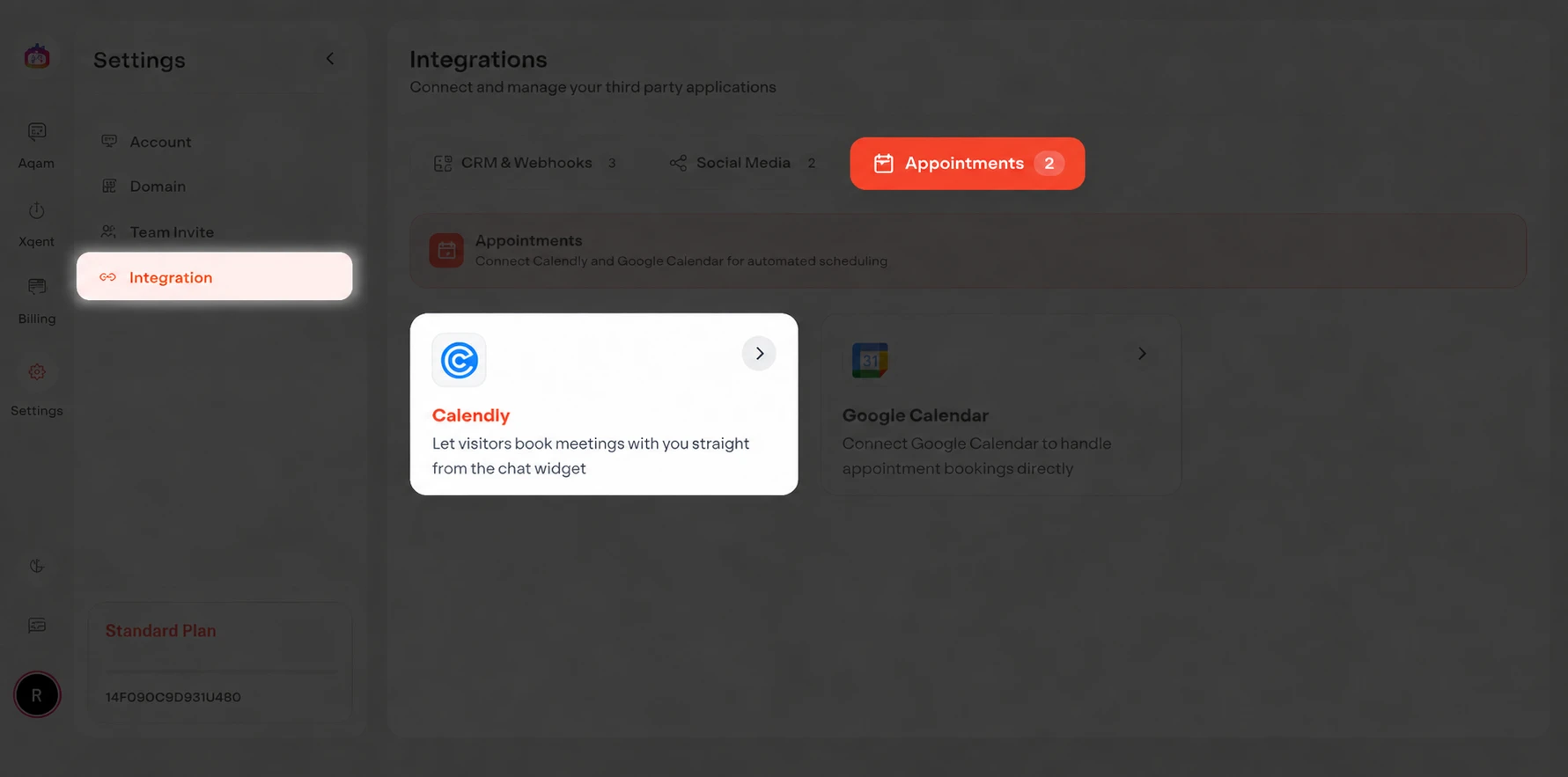
- Open the Settings page.
- Select Integration from the left sidebar.
- Click the Appointments tab.
- Click the Calendly card from the list of available integrations.
Connect Calendly
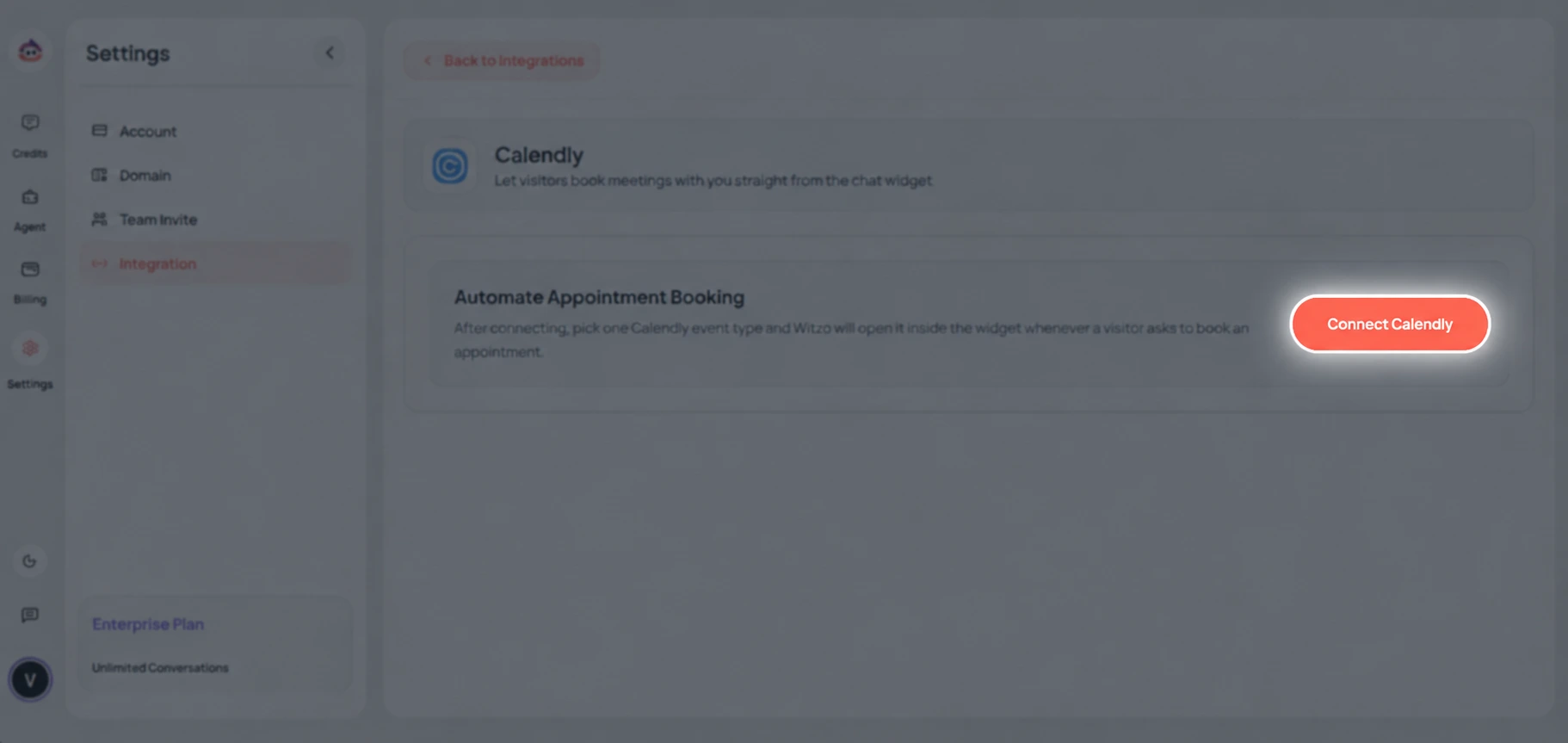
- Click Connect Calendly.
Sign In to Calendly
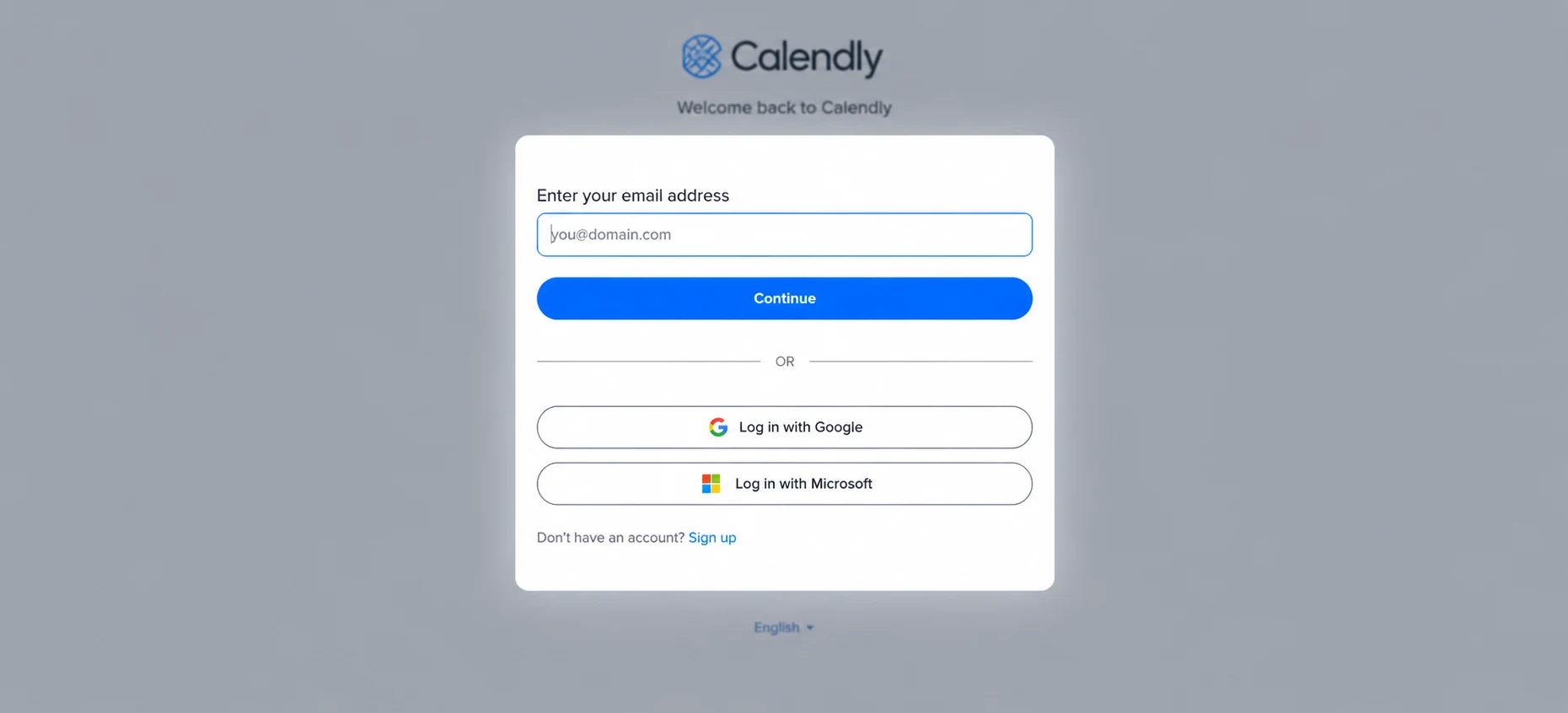
- Enter your Calendly account email and click Continue, or sign in with Google or Microsoft.
Approve the Connection
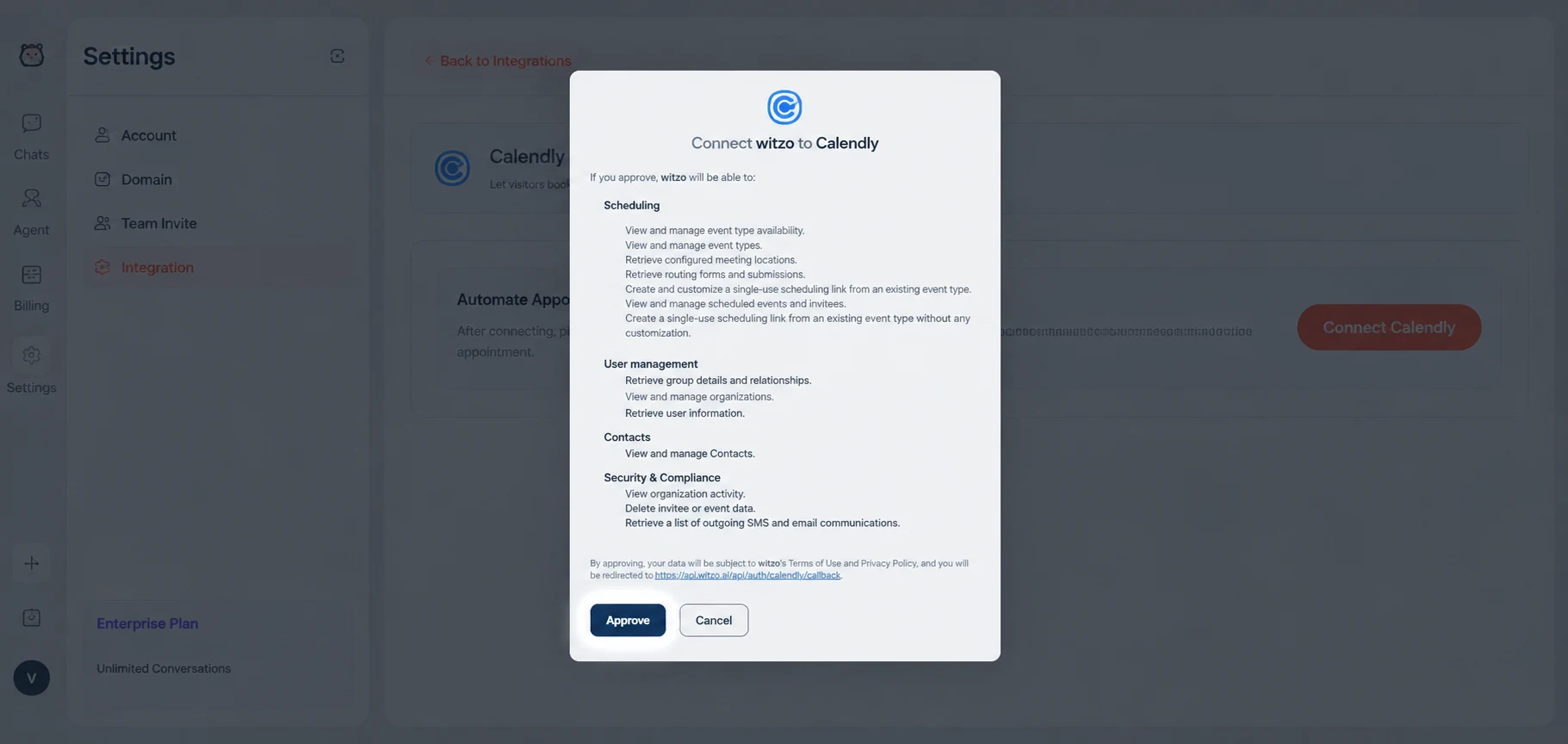
- Review the permissions Witzo is requesting, including access to your event types, availability, and scheduled events.
- Click Approve to authorize the connection.
- You will be redirected back to the Witzo Dashboard with Calendly connected.
Manage Your Integration Settings
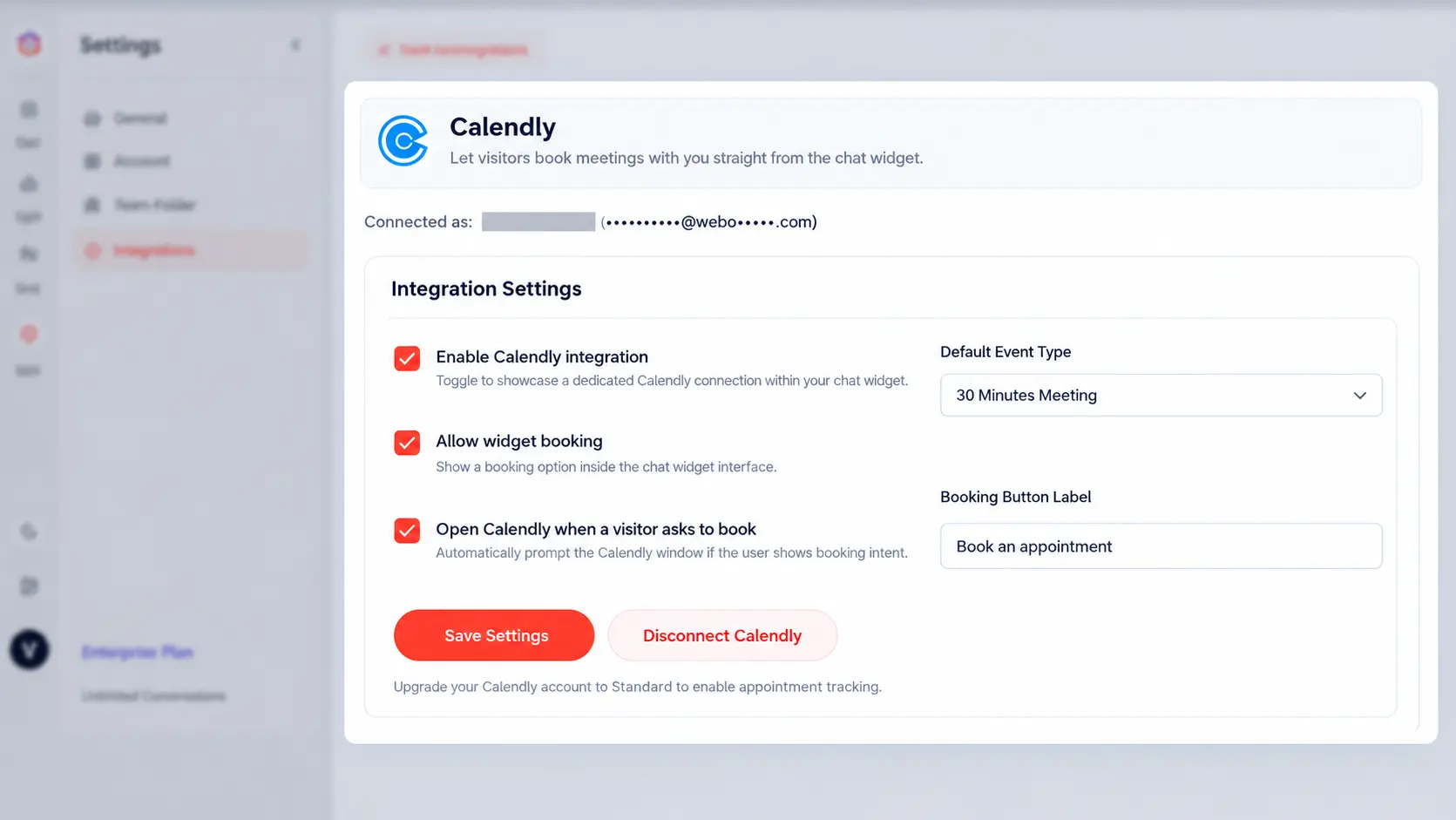
- Once connected, the Calendly panel opens showing the account you're Connected.
- Under Integration Settings, configure how the integration behaves:
- Enable Calendly integration - toggle to showcase a dedicated Calendly connection within your chat widget.
- Allow widget booking - show a booking option inside the chat widget interface.
- Open Calendly when a visitor asks to book - automatically prompt the Calendly window if the visitor shows booking intent.
- On the right, choose your Default Event Type and set the Booking Button Label shown to visitors.
- Click Save Settings to apply your changes.
Select an Event Type
After connecting, pick one Calendly event type for Witzo to use as the Default Event Type. Witzo will open this event type inside the widget whenever a visitor asks to book an appointment.
Manage Your Connection
You can return to Settings > Integration > Appointments > Calendly at any time to:
- view your connection status and connected account
- change the selected event type or booking button label
- reconnect your account
- disconnect Calendly if needed
Troubleshooting
Unable to Connect Calendly
Verify that:
- your Calendly account is active
- you approved all requested permissions during sign-in
If the issue persists, disconnect the integration and try connecting again.
Need Help?
If you are having trouble connecting Calendly, contact Witzo Support.